Bring your whole contact list from your old platform in one go with the Contacts import in Import & migrate. It adds new people, updates people already on your list, attaches their tags, keeps extra columns as custom fields and brings in notes. You see a preview of every change before anything is saved.
This is a different tool from Contacts → Imports, which only adds new people and skips anyone already on your list. For that one, see Import contacts from a CSV.
Who can do this
- Owners and admins, from Settings → Import & migrate (
/settings/import). - Staff and viewers see only "Only owners and admins can run imports."
Prepare your CSV file
- The first row must be column headings, with at least one row of data under it.
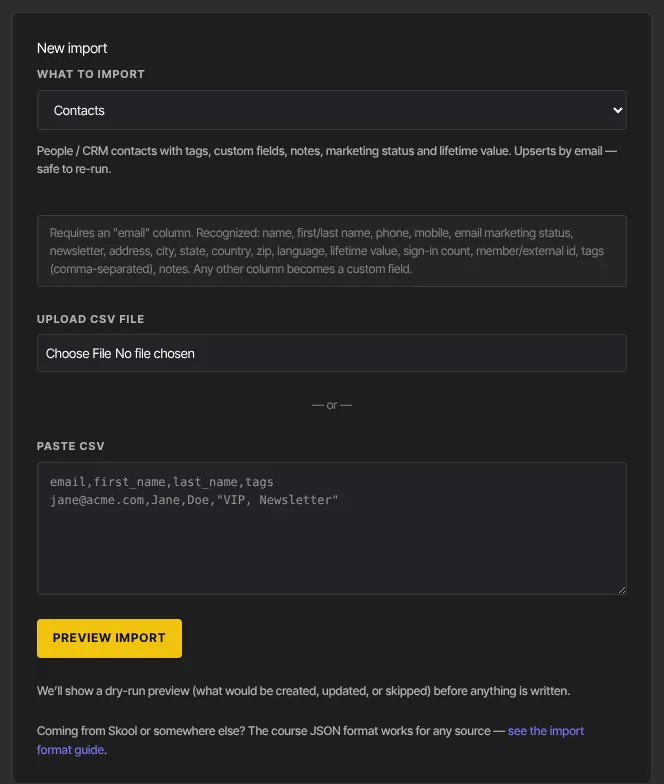
- One column must hold the email address, headed email, email address or e-mail. Capitals, spaces and punctuation in headings don't matter.
- These columns are read into the contact: name (or full name), first name, last name (or surname), phone, mobile (or cell), email marketing status (or marketing status), newsletter, address, address line 2, city, state (or province, region), country, zip (or postal code), language, lifetime value, sign-in count, member id (or user id, external user id), tags and notes.
- Tags: put several in one cell, separated by commas or semicolons, and wrap the cell in quotes, like
"VIP, Newsletter". - Marketing status: values such as subscribed, opt-in, yes or true make the contact subscribed; unsubscribed, opt-out, never, no or false make them unsubscribed. Anything else leaves their status as it is, and new contacts without one start unsubscribed. Only mark people subscribed if they agreed to hear from you.
- Lifetime value can be written as money, like
$1,234.56. - Notes are added only to people who are new in this import, so a second run doesn't add them twice.
- Every other column with a heading is saved on each contact as a custom field. Date columns such as created at, updated at, last sign in and last activity, and plain id columns, are left out. The contact record doesn't show custom fields, so keep your original file if you'll want to look them up.
- Keep the file under 1 MB. Split a longer list into several files.
Import the file
- Go to Settings → Import & migrate.
- In New import, leave What to import on Contacts.
- Choose your file under Upload CSV file, or paste the text into Paste CSV.
- Click Preview import.
- Check the counts on the Review import page: created is new people, updated is people already on your list, skipped is repeats of an email in your file (the first row is used), and failed is rows with a missing or invalid email.
- Under This import will also create, check the New tags and New custom fields we'll add. Sample shows how your first rows were read, with create or update under Action.
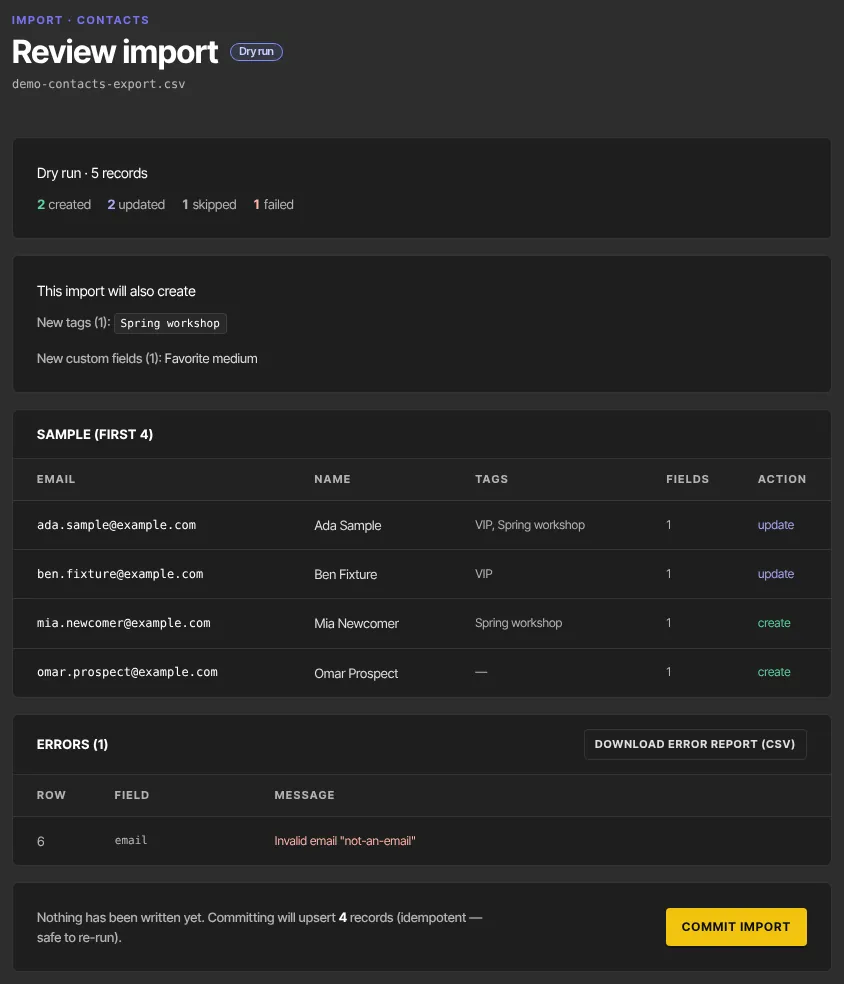
- Click Commit import. The page shows Import results, with how many tags, custom fields and notes were added. Click View contacts → to see them.
People already on your list
- We match people by email, ignoring capitals.
- A filled-in cell in your file replaces what's stored for that field. If you're re-importing an older export, remove the columns you've edited here since, so old values don't overwrite newer ones.
- Tags in the file are added. Tags a contact already has are never removed.
- Everyone in the file gets the source import, including people who were already contacts.
What happens next
- The contacts appear in Contacts straight away, with their tags.
- We don't email anyone you import, and the import doesn't start Contact is created or tag automations.
- You can run the same file again safely: people are updated, not duplicated, and notes aren't repeated.
Common errors
- "The CSV must include an "email" column.": rename your email column. The preview still saves, but committing it adds nothing, so upload the fixed file again.
- "Need a header row plus at least one data row.": the file has headings only, or only one line.
- "Invalid email "…"" or "Missing email": that row was left out. Fix it and import the file again.
- An error with an email in the Field column: that one contact couldn't be saved; the rest were. Check that row's values and import it again.
- "Upload a CSV file or paste CSV text.": nothing was chosen or pasted.
- "Only owners and admins can run imports.": ask an owner or admin.
- The import shows Failed: tags or custom fields couldn't be created, so the import stopped. Upload the file again and commit the new preview.