The Media Library lists the videos, audio and files in your workspace: the ones you upload on this page, and the ones added elsewhere, such as lesson videos, lesson downloads, download products, podcast audio, images from image fields and videos brought in with Import & migrate. Use it to upload new media, check that a video has finished processing, preview what you have, and see what's in use.
Who can do this
- Owners, admins and staff can upload, preview and use Refresh.
- Only owners and admins can delete. See Check where media is used, and delete it.
- Viewers can open the page, see everything on it and preview images. They can't upload or play videos: uploading shows "Video/audio uploads need Cloudflare Stream configured for this environment." or "Could not start the upload.", and Play video shows "This video isn’t ready to play yet." Refresh changes nothing for a viewer.
There's no plan requirement: every workspace has a Media Library.
Upload a video or audio file
- Click Media Library in the sidebar, or Media library in the Dashboard's Quick create panel. The page is Media Library (
/media). - Click Upload video / audio and choose one video or audio file.

- Uploading… appears under the heading. Keep the page open until it goes away.
- The new item appears at the top of Videos & audio with the status uploading.
You upload one file at a time. Each video or audio file can be up to 2 hours long and up to 30 GB. Large files are sent in pieces, so a short drop in your connection doesn't restart the upload. Keep the page open until it finishes.
Upload a file
- On the Media Library, click Upload file and choose any file: a PDF, a workbook, a zip, an image. Each file can be up to 5 GB.
- Uploading… appears while it's sent.
- The file appears at the top of Files with the status ready, its size and a Usage of 0. Images (except SVG) show a small thumbnail; other files show an icon for their type (video, audio or file).
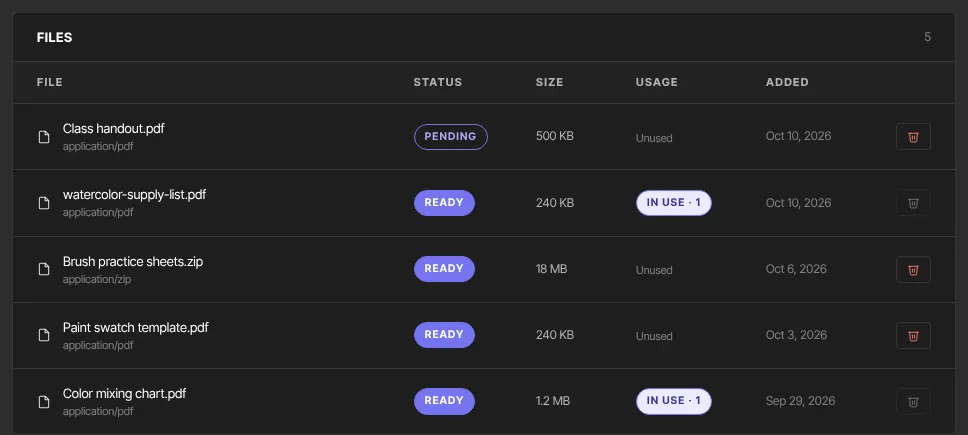
A file stuck at pending never finished uploading. Upload it again; an owner or admin can delete the leftover row.
Check when a video is ready
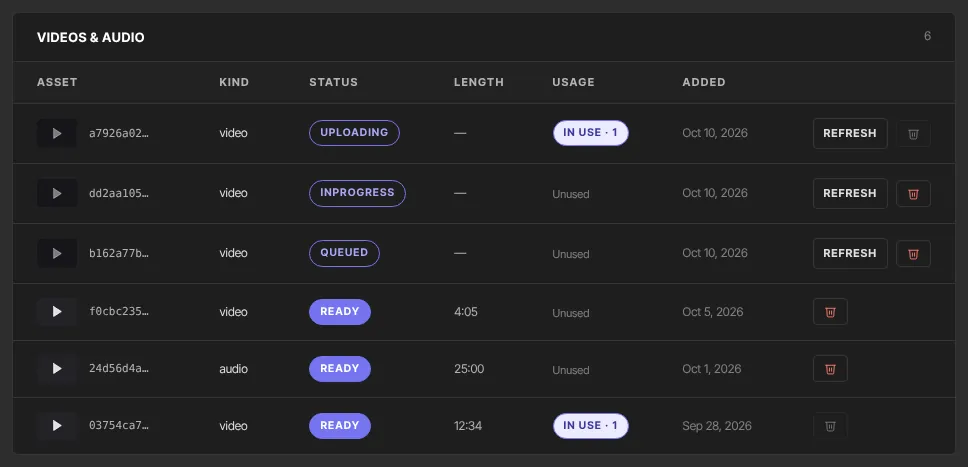
Every video and audio file is processed for streaming before anyone can play it. The Status column shows where it is:
- uploading or pending: the file is still on its way, or the upload was interrupted.
- queued: waiting to be processed. Videos from Import & migrate start here.
- inprogress: being processed.
- ready: done. Its Length fills in, you can play it here, and members can watch it in its lesson.
- error: processing failed. Upload the file again.
We check processing videos every 15 minutes, so a video turns ready on its own within about 15 minutes of processing finishing. To check straight away, click Refresh on its row. The automatic check covers videos added in the last 7 days; for an older video that still isn't ready, use Refresh.
Find, filter and sort
Each list has its own search box, filters and sort above it.
- Type in Search videos and audio or Search files to match a name.
- Narrow the list with the filters: Video or Audio (or Images, Video, Audio and Other files for files), a status (Ready, Processing, Error), and In use or Unused.
- Pick an order from the sort menu (newest, oldest, name, length or size, most used, unused first), or click the Asset, Length, Usage or Added column header. Click the same header again to reverse it.
- While a search or filter is on, the list says Showing N of M. Click Clear to see everything again.
Filters and sort reset when you leave the page.
Rename a video, audio file or file
- Click the pencil next to the name (Rename).
- Type the new name and press Enter, or click Save. Press Esc or click Cancel to keep the old one.
- Videos and audio: without a name of your own, a row is named by the file you uploaded (for example
welcome.mp4). An imported video has no file name, so it shows the title of the lesson that plays it, with Lesson video and a short code underneath. A video with neither shows only the short code. Once you rename one, its automatic name shows underneath. Leave the box empty and save to go back to the automatic name. - Files: the new name is what the list shows and what a download saves as. Leave off the extension and the old one is kept, so
notesonscan_0042.pdfbecomesnotes.pdf. A file must have a name. - Renaming never breaks anything: lessons, products and pages that use the item keep working.
- Names can be up to 200 characters. Viewers can't rename.
Preview a video or image
- In Videos & audio, click the thumbnail at the start of a ready row: a video shows a still from the video, audio shows a music note. In Files, click an image's thumbnail.
- The preview opens over the page. Use ‹ and ›, or your arrow keys, to move through every ready video and image.
- Close it with ✕, the Esc key, or a click outside the preview.
Good to know
- Each list shows your 500 most recent items.
- A lesson's video is added in the lesson editor; see Upload video to lessons. It's listed here as soon as you upload it.
- Moving a video library from another platform? Use Import and migrate. Imported videos appear here as queued and turn ready on their own.
- What you upload on this page stays in the library. Lessons, download products and podcast episodes have their own upload buttons and can't pick from this list, and Choose from library in image fields only lists images uploaded through image fields. To use a file somewhere, upload it there.
- The Media Library has no download button. Keep your own copy of anything you upload.
What happens next
- A new upload shows a Usage of 0 until something uses it.
- While a lesson's video isn't ready, members see Video is still processing where the player goes. When it turns ready, they get the player the next time they open or reload the lesson; you don't need to publish anything again.
- Members watch through short-lived signed links, so a copied video link stops working after a few minutes.
Common errors
- "Video/audio uploads need Cloudflare Stream configured for this environment.": despite the wording, this appears whenever a video upload can't start. Usually you're signed in as a viewer, who can't upload, or your free trial has ended (subscribe in Settings → Billing). Otherwise, wait a moment and try again.
- "Could not start the upload.": a file upload couldn't start. The causes are the same, or the file is bigger than 5 GB.
- "Upload failed.": the file didn't finish sending. Check your connection and try again.
- "Could not finalize the upload.": the file didn't arrive in full, or it's over 5 GB. Upload it again.
- "This video isn’t ready to play yet.": the video is still processing (check its Status), or you're a viewer. Viewers can't play videos here.
- A video stays at uploading or queued for a long time: click Refresh. If it changes to error, upload the file again.
- A thumbnail or image preview doesn't load: image previews use links that expire after 10 minutes, and video stills after about 5. Reload the page. A video that's still processing shows an icon until it's ready, and so do videos for team members with the viewer role, who can't play them.