The Usage column in the Media Library shows whether each video or file is used somewhere in your workspace. Owners and admins can delete the items nothing uses, to keep the library tidy. A delete is permanent and happens the moment you click, so check the Usage column first.
Who can do this
- Owners and admins can delete videos, audio and files.
- Staff and viewers see the same trash buttons, but clicking one on an unused item shows "Could not delete that asset." at the top of the page.
- Staff can still take a video off a lesson in the lesson editor with Remove video or Replace video. The old video is deleted too when nothing else uses it (see "Duplicated and imported courses" below). See Upload video to lessons.

There's no plan requirement.
Read the Usage column
- 1 (or a higher number): the item is used in that many places. It can't be deleted until you remove it from each one.
- 0: nothing the library tracks is using it.
These uses are counted:
- a lesson's video, in any course, including a duplicated copy of a course
- product thumbnails, module images and lesson thumbnails
- lesson downloads and resources, and the files in a download product
- podcast artwork and episode audio
- certificate logos and backgrounds
- files your members attach to community posts and challenges
- files added to coaching sessions
- images you uploaded and placed on a page, blog post, lesson, email or checkout page, or in your site or community branding (a blog image, your site logo, a community logo or banner, an image in the page builder)
An item whose Usage is 0 isn't used in any of these places.
Delete a video or audio file
- Open the Media Library (
/media) and find the row under Videos & audio. Search by name, or set the usage filter to Unused to list only what can be deleted. - Check that Usage reads 0.
- Click the trash button at the end of the row (Delete asset). There's no "are you sure?" step: it's deleted straight away.
- The page reloads without the row.
Delete a file
- Under Files, find the file by its name (or search for it).
- Check that Usage reads 0.
- Click the trash button at the end of the row (Delete file). It's deleted straight away.
- The page reloads without the row.
Delete several unused items at once
Owners and admins can clear out unused media in one go.
- In Videos & audio or Files, set the usage filter to Unused (optional, but it lists only what can go).
- Tick the box at the start of each row you want to delete, or tick the box in the header row to select every unused item shown. Items whose Usage is above 0 can't be ticked.
- Click Delete selected, then confirm with Delete N. This can't be undone.
- A message says how many were deleted. If something started using an item since you opened the page, that item is kept and the message says so.
Viewers and staff don't see the boxes.
When a delete is refused
If you click the trash button on an item whose Usage is above 0, nothing is deleted. The message "Still in use — remove it from any lessons or products first." appears under the button.
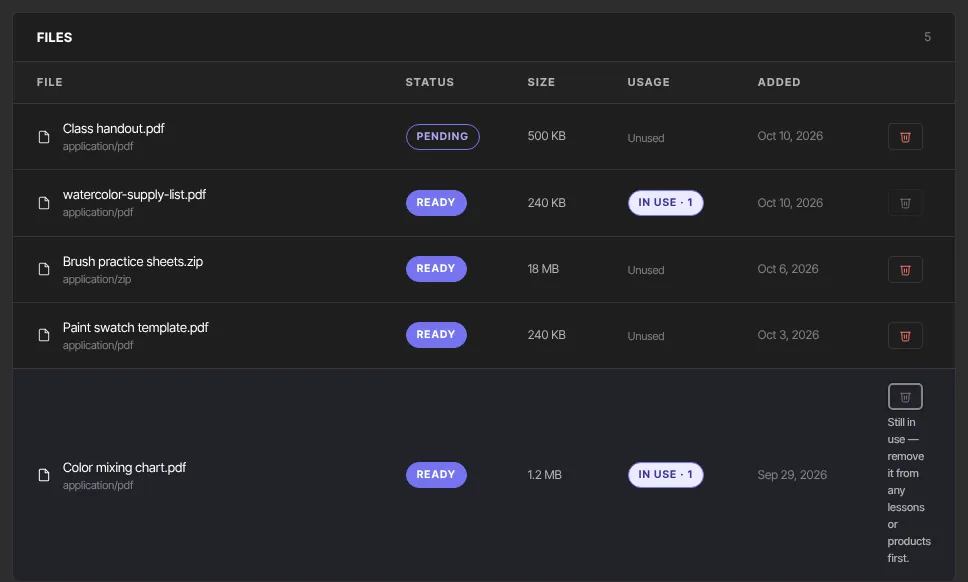
- Go to each place that uses the item (the lesson, product, module, podcast, certificate, community post, coaching session, or the page, post or email showing the image) and remove or replace it there.
- Reload the Media Library. When its Usage reads 0, delete it.
You see the same message if someone started using the item after you opened the page.
Duplicated and imported courses
- A duplicated course shares its videos and files with the original, so they count as in use by both courses. Removing a video from a lesson in one copy leaves the other copy's lesson working.
- A lesson video that came in through Import & migrate is handled like an uploaded one: replacing or removing it in the lesson editor deletes it, unless another lesson still uses it.
What happens next
- A deleted video is removed from streaming and from the library.
- A deleted file's stored copy is removed along with its row.
- A deleted image you uploaded through an image field also leaves Choose from library and goes offline: its web address stops working. You can only delete it once nothing uses it.
- There's no undo. To get something back, upload it again.
Common errors
- "Still in use — remove it from any lessons or products first.": something uses the item. See "When a delete is refused".
- "Could not delete that asset.": only owners and admins can delete. If you are one, your free trial may have ended (subscribe in Settings → Billing), or it was a temporary problem: try again.