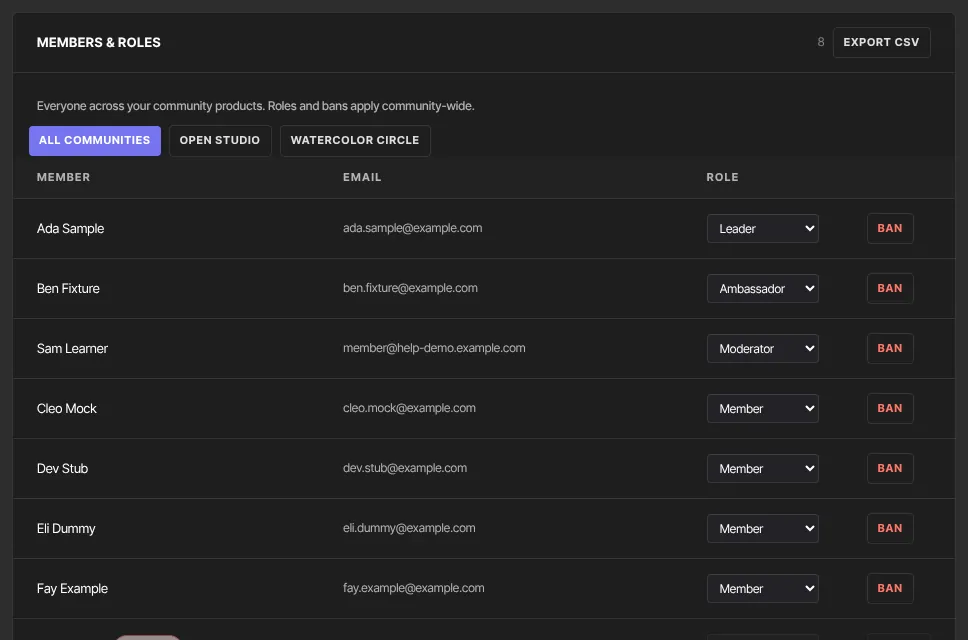
The Members & roles tab of Community Settings lists everyone who has access to any of your community products. From there you can export the list, give trusted members a community role so they can help moderate, and ban someone from the whole community.
Who can do this
- Owners, admins and staff can assign roles, ban and unban, and export the list.
- Viewers can see the list, but changes are refused with "You don’t have permission to do that." and Export CSV returns an error instead of a file.
Community roles are not workspace roles
Owner, admin, staff and viewer are workspace roles: they decide what your team can do in the admin app. Community roles (Leader, Admin, Moderator, Assistant and Ambassador) are given to members and only work inside the community. A member with the community role Admin can't open your admin app. Only people with access to a community product are listed, so a teammate shows up only if they've also been given access as a member.
See and export your members
- In the sidebar, open Catalog → Community and click Community Settings. Then click Members & roles (
/products/community-settings?tab=members). - The list shows each member's name, email, role and a Ban button.
- If you sell more than one community product, use All communities or a product's name to narrow the list. Roles and bans still apply community-wide.
- Click Export CSV for a file with each member's name, email, role and whether they're banned.
Give a member a community role
- On Members & roles, open the role picker on the member's row.
- Choose Leader, Admin, Moderator, Assistant or Ambassador. It saves straight away. Choose Member to take a role away.
What each role can do, from inside the community:
- Leader and Admin: pin, hide and lock any post, and delete any post.
- Moderator and Assistant: pin, hide and lock any post, but not delete. Moderators cover every space in the member's community product, the same as Assistants.
- Ambassador: a badge next to their name, with no moderation powers.
- Member: no badge and no moderation.
No community role can approve held posts, see reports or the log, manage spaces, edit other people's posts, or hide or delete comments. Those stay with your team on the product's Posts and Spaces tabs. The member-side steps are in Moderate a community as a Leader, Admin, Moderator or Assistant.
Ban or unban a member
- On Members & roles, click Ban on the member's row.
- Their row gets a banned badge and they appear under Banned from this community.
- To let them back in, click Unban on their row or in that list.

A ban takes away their access to every community product you sell. They see Members only when they try to open one. Their courses and other products aren't affected, and their purchases stay as they are. Bans stay in place even if their access to a community product later lapses.
What happens next
- A member's role badge appears next to their name on their posts and in the community's member list.
- Role holders see a Moderate row under every post the next time they load the community.
- Every ban and unban is recorded in the Logs tab of the Posts tab's Review feed.
- Unbanning restores access straight away to the community products they still have access to.
Common errors
- "No members yet — they appear here once an offer grants access.": nobody has access to a community product yet. Sell or grant one first; see Grant and revoke access.
- A teammate isn't in the list: only people with access to a community product are listed. Grant them access if they should take part as a member.
- "You don’t have permission to do that.": your role is viewer.