Six community features can be switched on or off for each community product, and renamed for the whole community. The feed is always on. This is how a free community and a paid mastermind can offer different things, and how "Meetups" becomes "Office hours".
Who can do this
- Owners, admins and staff can switch features on or off and rename them.
- Viewers can open the settings, but saving says "You don’t have permission for this."
Switch features on or off for one product
- Open the community product and click the Brand tab.
- In the table under the branding, tick or untick Challenges, Meetups, Leaderboard, Messages, Live and Members.
- Click Save brand. "Saved" appears.
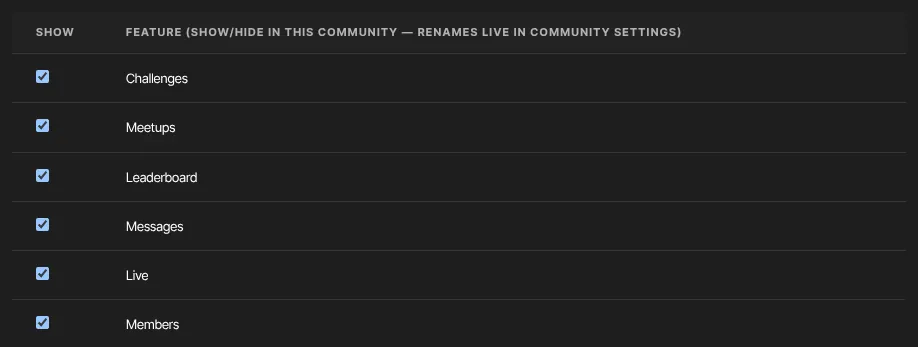
Everything except Live starts ticked. Live also needs a room; see Meetups and live rooms.
What switching a feature off does
Unticking a feature switches it off for that community product, not just out of sight:
- Its link leaves the sidebar, and the feed's right-hand column drops what belongs to it: All Members when Members is off, promoted challenges when Challenges is off, and upcoming meetups when Meetups is off.
- Its pages show a notice instead, even from an old link or a bookmark. For example: "Messages isn’t enabled in this community." The notice uses your renamed label, such as "Office hours isn’t enabled in this community."
- Members can't use it: no joining challenges, ticking steps, posting entries, or commenting on and hyping entries; no meetup RSVPs; no starting or sending direct messages. Someone with the page still open gets nothing saved when they try.
- Your side keeps working. You can still create and edit challenges and meetups, change points settings and export challenge entries while a feature is off, so you can set things up before switching it on.
- With Members off, the directory is gone, but a member's profile still opens from their name on a post.
Two gaps to know about:
- Upcoming meetups still appear on members' Live events page, which gathers meetups from all their communities. Opening one leads to the notice.
- The Leaderboard also has its own switch for the whole community, Show the leaderboard to members, under Community Settings → Gamification. Members only see the leaderboard when both are on. With the tick off they see "Leaderboard isn’t enabled in this community."; with the Gamification switch off, "The leaderboard isn’t available in this community." See Challenges, points and the leaderboard.
Rename features for the whole community
- Open Community Settings and stay on General.
- In the Rename to column, type a new name next to any feature, such as "Office hours" for Meetups or "Sprints" for Challenges. Leave a box empty to keep the original name.
- Click Save community settings.
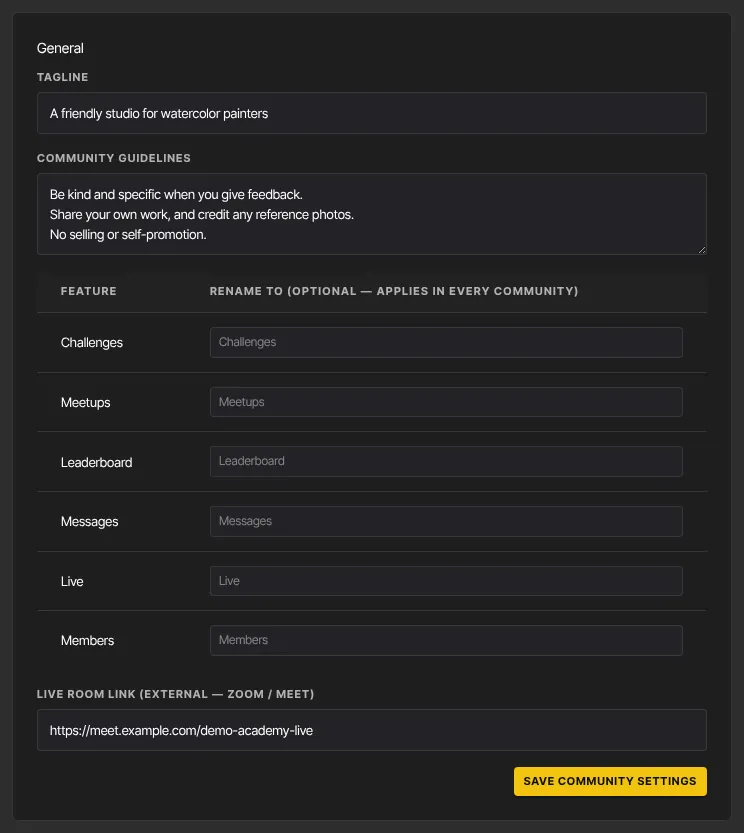
Renames apply in the sidebar of every community product, as the heading of the Live page, and in the notice members see when a feature is switched off. The ticks are per product; the names are community-wide.
Worth a decision, not a default
- Leaderboard rewards whoever earns most points. In a small or professional community that can quietly put off the people you most want contributing.
- Messages is private member-to-member messaging. You can't see those conversations; members can block each other but can't report a message.
- Members shows a member directory. Consider whether your audience expects to be listed to each other.
- Live shows a Live button in the sidebar. It needs a room before there's anything to join.
What happens next
- Members see the new sidebar, pages and names the next time they load the community.
- A feature you tick again comes back with everything it had: nothing is deleted when you switch it off.
Common errors
- "Could not save settings." or "Could not save community settings.": try again in a moment.
- "Community product not found.": reload the page and save again.
- Members say a feature "isn’t enabled in this community.": it's unticked on that product's Brand tab. Tick it and click Save brand.
- Members still see a feature you switched off: they have an old copy of the page open. It updates when they reload.