Challenges give members something to do together: a set of steps to tick off, entries to share and prizes to aim for. Points reward taking part across the whole community, and the leaderboard shows who's most involved. Use them together to keep a community active between your posts and meetups.
Who can do this
- Owners, admins and staff can create, edit, export and promote challenges, and change the points settings.
- Only owners and admins can delete a challenge. Staff who click Delete see "You don’t have permission to do that."
- Viewers can look, but saving says "You don’t have permission for this." and Export doesn't download.
Create a challenge
- Open the community product and click the Challenges tab (
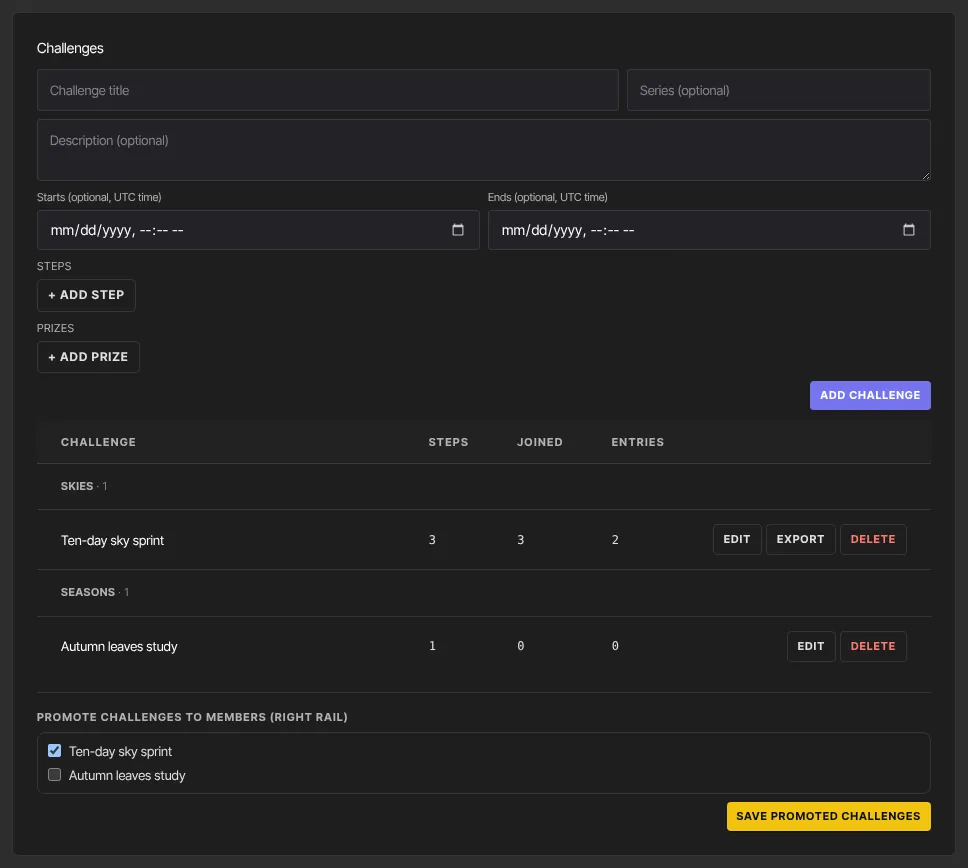
/products/<id>/community?tab=challenges). - Fill in Challenge title. Optionally add Series (optional) to group related challenges, and Description (optional).
- Optionally set Starts and Ends. The labels show the timezone they're read in: your workspace timezone from Account details, or UTC if you haven't set one.
- Click + Add step for each step, with a Step label and optional Details (optional). Up to 20 steps; × removes one.
- Click + Add prize for any prizes, with a Place, a Prize and optional Details (optional). Up to 10.
- Click Add challenge. "Saved" appears and the challenge is listed with its Steps, Joined and Entries counts, grouped by series.
Edit, export or delete a challenge
- Edit: click Edit on its row, change anything, then Save changes (or Cancel). Members who already completed it stay complete if you remove steps.
- Export: once a challenge has entries, click Export to download a spreadsheet file. It lists each entry with when it was submitted, the member's name and email, the entry text, attachments, hype-ups and comments.
- Delete: click Delete. The challenge goes at once, with everyone's progress and entries. There's no confirmation step.
Promote challenges to members
- At the bottom of the Challenges tab, find Promote challenges to members (right rail).
- Tick the challenges to feature.
- Click Save promoted challenges.

Each one shows as a card in the right-hand column of that product's feed, with its steps, how many joined, and Join challenge or View challenge, while Challenges is ticked on its Brand tab. To promote offers there too, see Brand your community.
Set up points and the leaderboard
Points and the leaderboard are shared by your whole community.
- Open Community Settings and click Gamification.
- Tick or untick Show the leaderboard to members.
- Change Points are called if you'd like another word, such as "stars".
- For each action, set Points, and Max / day to stop farming. Leave Max / day empty for no daily limit. The actions are: Posted a message in a channel, Reacted to a message, Received a reaction, Responded to a poll, RSVPed to an event, Completed a challenge, Commented on a challenge and Reacted to a challenge.
- Under Titles (one per line — Name: points), list titles and the total that earns each, like "Regular: 50".
- Click Save gamification.
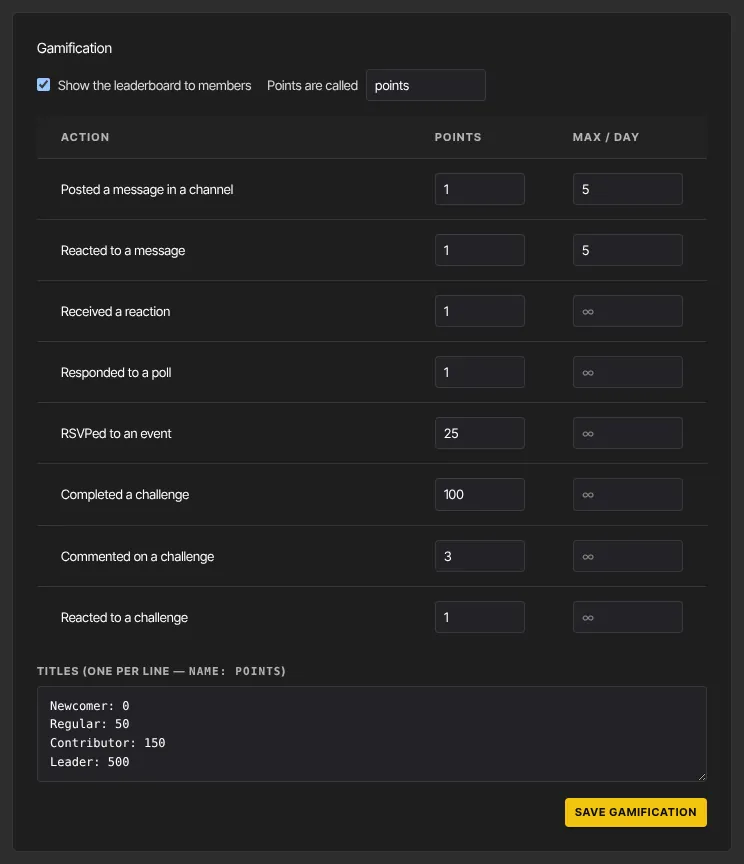
Each action counts once per thing: a member earns reaction points once per post, poll points once per poll, and so on. A day for Max / day runs midnight to midnight UTC. Set an action to 0 to stop awarding it.
What happens next
- Members see challenges on their Challenges page. They join, tick off steps, post entries with pictures or PDFs, and hype and comment on each other's entries. Finishing every step marks the challenge complete and awards its points once.
- New point rules apply from then on. Points already earned are never taken away, even if a member removes a reaction or deletes a post.
- The leaderboard ranks the top 50 members across all your community products, with their title.
Common errors
- "Add a title (and at least one step helps).": the title is empty.
- "Add a title first.": you cleared the title while editing.
- "Could not create the challenge." or "Could not save the challenge.": try again in a moment.
- "Could not save promoted challenges." or "Could not save gamification settings.": try again in a moment.
- "No challenges yet — create one above.": add a challenge before promoting one.
- Members see "The leaderboard isn’t available in this community.": tick Show the leaderboard to members.
- Members see "Leaderboard isn’t enabled in this community." or "Challenges isn’t enabled in this community.": that feature is unticked on the product's Brand tab. Tick it and click Save brand; see Show, hide and rename community features.
Related articles
- Meetups and live rooms
- Brand your community
- Show, hide and rename community features
- Challenges, points and the leaderboard (what members see)