Every community product has a Posts tab where you look after its conversation. You approve or reject posts held for review, pin the important ones, hide or delete what breaks your rules, lock threads that have run their course, and read members' reports. You can also set community guidelines that every member accepts before they post.
Who can do this
- Owners, admins and staff can moderate posts and edit the guidelines.
- Viewers can read the Posts tab, but every button is refused with "You don’t have permission to do that."
- Members you've given the community role Leader, Admin, Moderator or Assistant can pin, hide and lock posts from inside the community, and Leaders and Admins can delete them. They don't see the Posts tab. See Community members, roles and bans.
Approve or reject held posts
Posts wait here when a member posts in a space with Require review before posts go live ticked.
- Open the community product and click the Posts tab (
/products/<id>/community?tab=details). - In the Review feed panel, Pending is selected. Each row shows the post, who wrote it and its space.
- Click Approve to publish it, or Reject to keep it from members.
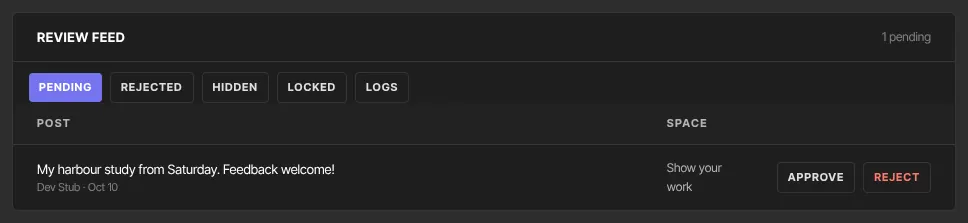
The other tabs in the panel:
- Rejected: Restore publishes a rejected post after all. Delete removes it.
- Hidden: posts you've hidden. Show puts one back. Delete removes it.
- Locked: posts closed to new comments. Unlock opens one again.
- Logs: every moderation action and report, across your whole community.
Pin, hide, lock or delete a live post
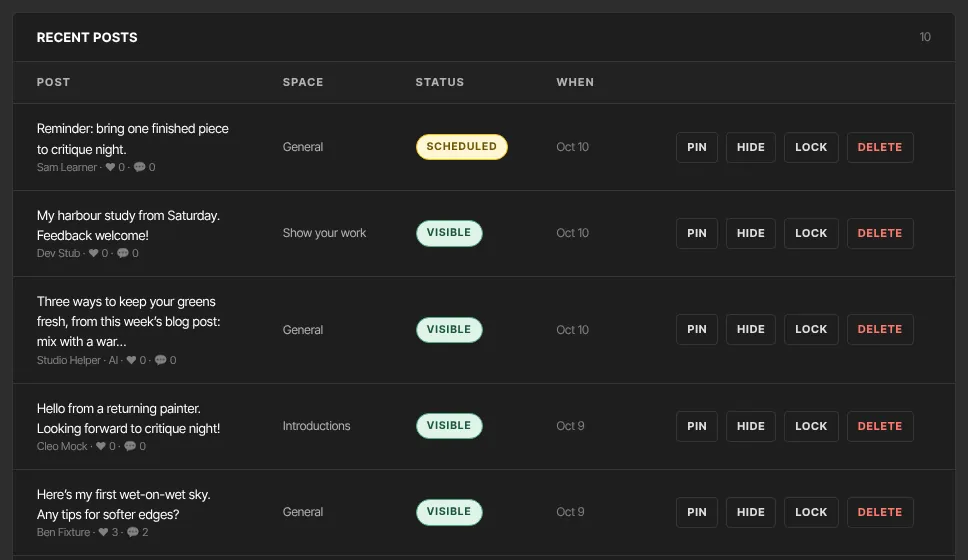
- On the Posts tab, scroll to Recent posts. Each row shows the post, its space, a status (visible, hidden or scheduled) and when it was posted.
- Use the buttons on the row:
- Pin keeps the post at the top of its space and of the Home feed. Unpin releases it. - Hide removes it from members' feeds without deleting it. Show brings it back. - Lock keeps the post up but closes it to comments. Members see "Comments are closed on this post." Unlock reopens it. - Delete removes the post, with its comments and reactions. There's no confirmation step.
Comments can't be hidden or deleted one by one. Only the person who wrote a comment can delete it. To stop a thread, Lock the post, or Delete the whole post.
Read member reports
Members can open someone else's post and use Report this post, with an optional reason. Reports aren't emailed to anyone: they appear in the log.
- On the Posts tab, click Logs in the Review feed panel.
- A report reads like "Ada Sample — Reported post “…” (Off-topic advertising)": who reported it, the start of the post, and their reason.
- Open the post's community product to act on it.
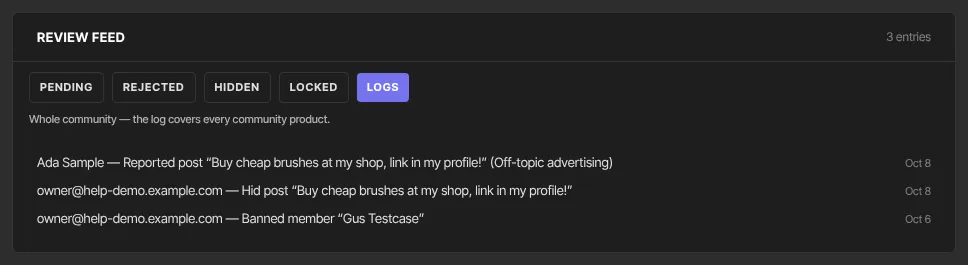
The log also records approvals, rejections, pins, hides, locks, deletes, bans and members blocking each other, with who did it and when. It covers every community product, and only your team can see it.
Set community guidelines
- Open Community Settings and stay on General.
- Write your rules in Community guidelines.
- Click Save community settings. "Saved" appears.

Members now see a Community guidelines box in place of the post box, with Accept guidelines. They can't post or comment until they accept. Whenever you change the text, everyone is asked to accept again. Leave the box empty to switch the step off.
What happens next
- An approved post goes live straight away. Its author earns their posting points, "Community post published" automations run, and if you use Community AI it may answer the post. If the member scheduled it for later, all of that happens at the scheduled time instead, when the post appears.
- The author of a rejected post isn't told.
- Pinned posts show first in their space and in the Home feed.
- Hidden posts disappear for members and for community-role moderators. Only your team can show them again.
Common errors
- "You don’t have permission to do that.": your role is viewer.
- "Nothing pending right now.": no posts are waiting. Check that the space has Require review before posts go live ticked.
- "No moderation activity yet.": nothing has been moderated or reported.
- Members say they can't post or comment: they haven't clicked Accept guidelines, which also happens again after you edit the guidelines. They see "Please accept the community guidelines before posting." or "…before commenting."