Once Community AI is running, you keep an eye on it from the same tab. The activity log shows everything it did and every time it held back. Flags show posts it left for you. Insights show how the community feels. Usage & billing shows what it has used and lets you bring your own Anthropic key.
This tab appears only when Community AI is switched on for your workspace. See Set up Community AI.
Who can do this
- Owners and admins can delete the assistant's posts, resolve flags and change billing.
- Staff can read everything and click Export CSV on Insights, but their buttons and saves are refused.
- Viewers can read the tab but can't export or change anything.
Review what it did
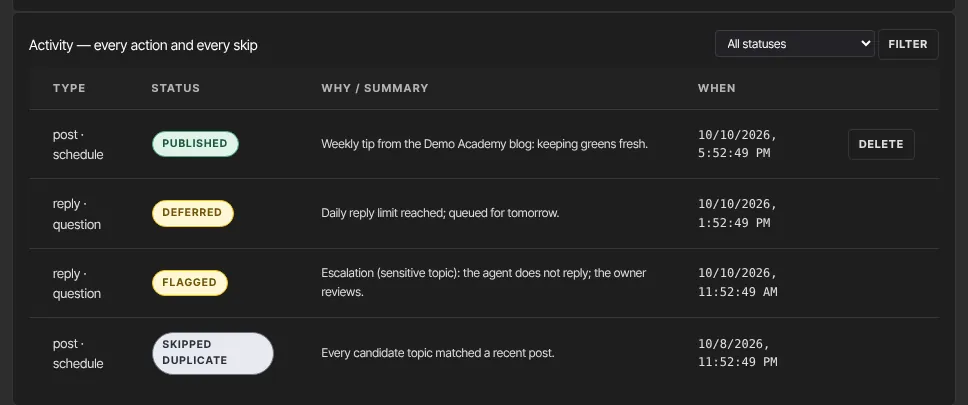
- Open Community Settings → Community AI → Overview and scroll to Activity — every action and every skip.
- Each row shows the type and trigger, a status, a short reason, and when.
- To narrow the list, pick a status and click Filter: published, skipped duplicate, skipped low confidence, skipped guardrail, flagged, deferred (waiting for the next day's reply allowance), failed or deleted by tenant.
Delete something it posted
- On a published row, click Delete.
- In Delete this AI post?, click Delete.
- The post or reply is removed from your community. The row stays in the log as deleted by tenant.
You can also delete its posts from the product's Posts tab like any other post.
Resolve flags
When a member's post needs a person, such as someone in distress, abusive content or a sensitive topic, the assistant doesn't reply. It raises a flag and emails the owner (the Community AI alerts notification).
- Open flags appear on Overview under Needs your attention. Urgent ones carry an urgent badge.
- Deal with the post in your community.
- Type an optional Resolution note (optional) and click Resolve. The flag leaves the list.

Read insights
- Click Insights. Choose 7 days, 30 days or 90 days.
- Read Avg sentiment, Member messages, Peak daily active members and Agent published, then Top threads, Struggling threads, By space, By topic and At-risk members: people whose activity has dropped and whose recent posts read negatively. Nobody on that list is contacted automatically.
- Click Export CSV to download the daily figures for the range.

The figures are worked out overnight, so today's activity appears tomorrow. Insights must be ticked in Switches.
Usage and your allowance
- Click Usage & billing. This billing period shows credits used against your allowance (or, on your own key, spend and your cap) and the assistant's status.
- Where it went breaks usage down into Posts, Replies, Question screening, Sentiment scoring, Weekly digest, Voice previews and Source indexing.
At 80% of the allowance an email goes to the owner, and to admins who turned on Community AI alerts. At 100% the assistant pauses until the period resets. Your community carries on as normal and nothing queued is lost. The email's Open usage & billing button opens this page: Usage & billing on the Community AI tab.
Use your own Anthropic key
- Under Billing mode, choose Use my own Anthropic key. If it's greyed out, it isn't offered for your account; stay on Included with your plan.
- Paste the Anthropic API key and, optionally, a Monthly spend cap (optional), such as 25.
- Click Save. The key is checked with a tiny test call, then "Key verified and saved." appears. It's stored encrypted and never shown again.

To change the cap later, leave the key box empty and click Save. To stop using your key, click Remove key, then Remove key in Remove your API key?. You go back to Included with your plan.
What happens next
- On your own key, the owner is emailed at 80% of your cap and the assistant pauses at 100%, the same as the included allowance.
- If Anthropic rejects your key, the assistant pauses and the page says "Your assistant is paused because Anthropic rejected this key. Save a working key to resume."
- Every Monday at 8 AM, in the Timezone set under Community AI Settings → Content (UTC if it's empty), the owner gets the weekly insights digest. Admins can turn on Weekly community insights digest on Notifications & privacy.
Common errors
- "That doesn’t look like an Anthropic key (it should start with sk-ant-).": check you pasted the whole key.
- "That key was rejected by Anthropic (401).": the key is wrong or revoked. Create a new one in your Anthropic account.
- "Add your Anthropic API key before switching to your own key.": paste a key, or stay on Included with your plan.
- "Enter the spend cap as a dollar amount, e.g. 25 or 25.00.": type a number only.
- Status shows paused: check Usage & billing. The allowance may be used up for this period.