Every community product is organised into spaces: the channels your members post in. A new community starts with one space, General, and you can add as many as you need. Spaces belong to one community product, so if you sell two communities, each has its own set.
Who can do this
- Owners, admins and staff can add, rename, reorder and change spaces.
- Only owners and admins can delete a space. When staff click Delete space, the space stays and a message says "You don’t have permission to do that."
- Viewers can see the Spaces tab, but adding a space says "You don’t have permission for this." and other changes are refused with "You don’t have permission to do that."
Add a space
- Open the community product and click the Spaces tab (
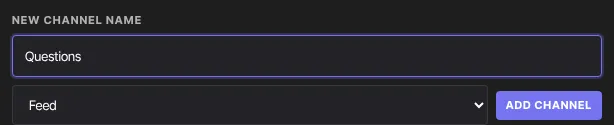
/products/<id>/community?tab=spaces). - At the bottom, type a New channel name, such as "Introductions".
- Pick the format: Feed or Event.
- Click Add channel. The space appears in the list and in your members' sidebar.
Change a space
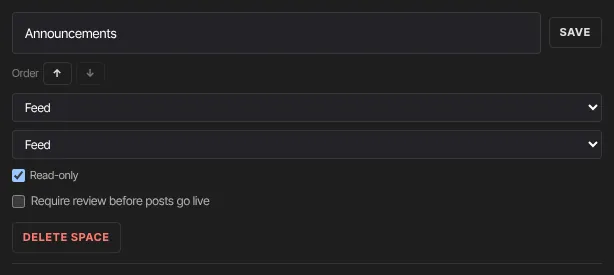
Each space has its own row on the Spaces tab. The format, view mode and tick boxes save as soon as you change them.
- Rename: edit the name box and click Save.
- Order: click ↑ or ↓ to move it. Members see the spaces in this order. The arrows appear once you have two or more spaces.
- Format: Feed or Event. Event only changes the icon next to the space in members' sidebar (a calendar instead of #). Posting works the same. To schedule events, use Meetups.
- View mode: how members see the posts.
- Feed: a scrolling timeline. Best for ongoing conversation. - Forum: a list of threads. Best where people look for past answers. - Gallery: a grid of cards. Best where the post is the picture, like work shared for critique.
Make a space read-only
Tick Read-only on a space and only your team can start posts there. Members can still read it, open its posts, comment and react. That's how you run an announcements channel without it turning into a thread.
- Members see "Only hosts can post in this channel. You can still comment and react." in the space, and it drops out of the Post in list on the community's Home feed. A post sent any other way, such as from a page left open, is refused with the same message. Members with a community role, such as Leader or Moderator, count as members here.
- The owner, admins and staff post there by opening the community with Preview while signed in to your workspace. In the space you see "Read-only channel: only your team can post here. Members can comment and react." above the post box, and the space is listed under Post in on Home.
Posts you make while previewing appear under your own name without a Host badge, and if the space also holds posts for review, yours wait for approval too. An automation with the Post in a community channel action can also post there: type the space's name as the Channel name. Those posts carry a Host badge. See Automation triggers and actions.
Hold posts for review
Tick Require review before posts go live on a space. From then on, members' new posts in that space wait in Posts → Review feed → Pending until someone approves them. See Moderate posts: the review feed, reports and guidelines.
The member who posted sees "Posted" but their post doesn't appear until it's approved, and they aren't told either way.
Delete a space
- On the Spaces tab, click Delete space on the space's row. The button only appears once you have more than one space: a community always keeps at least one.
- The space is deleted at once. There's no confirmation step.
Deleting a space also deletes every post in it, with their comments and reactions.
Spaces are not direct messages
- A space is shared. Everyone in that community product sees its posts, and you can moderate them.
- Messages are private between two members. You can't read them. Members can block each other in a conversation, and members can report posts, but not messages. To switch direct messages off for a community product, untick Messages; see Show, hide and rename community features.
What happens next
- Members see new and renamed spaces in their sidebar under the group's name, in the order you set.
- A forum or gallery space changes layout for members straight away.
- Read-only and review settings apply to new posts from then on.
Common errors
- "Give the channel a name.": the name is empty.
- "A channel with that name already exists.": another space has the same name, ignoring capitals. Pick a different name.
- "Could not add the channel.": try again in a moment.
- A rename doesn't stick: the new name matches another space, so the old name is kept. Choose a name no other space uses.
- "You don’t have permission to do that." after Delete space: only owners and admins can delete spaces.
- No post box in a read-only space: open the community with Preview while signed in to your workspace as the owner, an admin or staff. Members, community roles included, can't post there.