Meetups are scheduled events, such as a monthly critique night or a weekly open studio, that members of a community product can see and RSVP to. A live room is where your members go when you're live: either a link to your own Zoom or Meet room, or, where it's available for your account, a video room inside the community.
Who can do this
- Owners, admins and staff can schedule meetups and set the live-room link.
- Only owners and admins can delete a meetup. Staff who click Delete see "You don’t have permission to do that."
- Viewers can see the Meetups tab, but adding a meetup says "You don’t have permission for this."
- Only owners and admins can start and end a built-in live room.
Schedule a meetup
- Open the community product and click the Meetups tab (
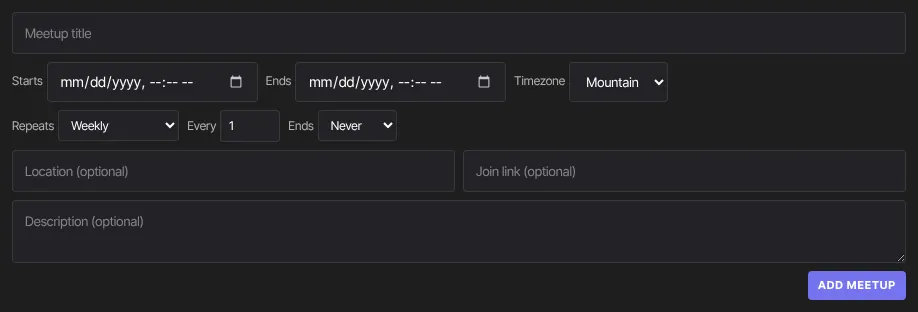
/products/<id>/community?tab=meetups). - Fill in Meetup title.
- Set Starts and, if you like, Ends.
- Pick the Timezone those times are in: Eastern, Central, Mountain, Pacific or UTC. It starts on Mountain, so check it. The times you type are read in this zone.
- Leave Repeats on Does not repeat for a one-off.
- Optionally add Location (optional), Join link (optional) (the full web address of your call) and Description (optional).
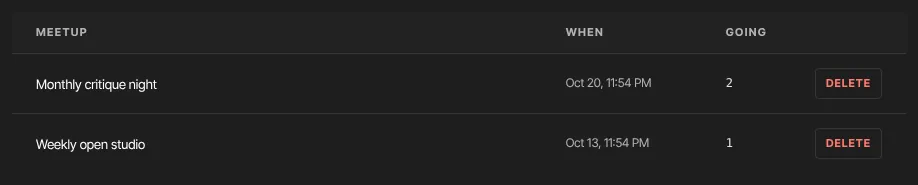
- Click Add meetup. "Created" appears, and the meetup is listed below with its date and Going count.
Make it repeat
- Set Repeats to Daily, Weekly or Monthly.
- Set Every (1 to 12), for example every 2 weeks.
- Under Ends, choose Never, or On date and pick the last date.
- Click Add meetup.
Members see "Repeats" with the pattern, and the next date. An RSVP covers the whole series. A repeating meetup lists its dates for about six months from when you add it; for a longer series, add it again when its dates run out.
Change or delete a meetup
Meetups can't be edited. To change one, delete it and add it again. Its RSVPs are lost, so let members know.
- On the Meetups tab, find the meetup in the list.
- Click Delete. It's removed at once, with its RSVPs. There's no confirmation step.
Set up the live room with an external link
- Open Community Settings and stay on General.
- Paste your room's address into Live room link (external — Zoom / Meet) and click Save community settings. The link is shared by every community product.
- On each community product that should have it, open the Brand tab, tick Live and click Save brand.

Members now see a Live button in their sidebar. It opens a page that says "The host has a live room set up. Join below." with Join the live room, which opens your link in a new tab.
Host a built-in live room
This appears only when built-in live rooms are available for your account. When they are, the Live page hosts video inside the community and the external link isn't used. The product must be published and Live ticked on its Brand tab.
- Click Preview on the community product, then Live in the community's sidebar.
- The page says "No live room is running. Start one and your members can join here." Click Start live room.
- Members who open Live join the room automatically.
- When you're done, click End live room. Everyone is disconnected.
Staff who open Live see the member message "No live session is running right now. Check back when the host goes live." and can't start a room.
What happens next
- Members see meetups on their community's Meetups page and in the right-hand column of the feed (both need Meetups ticked on the product's Brand tab), and on their Live events page across all their communities. They answer Going, Maybe or Can’t go, and a Join button appears for those going when you added a join link.
- No reminder emails or calendar invitations are sent for meetups, so remind members yourself, for example with a post.
- Unpublishing a community ends a built-in live room that's running. Someone who loses access during a live room is removed from it.
Common errors
- "Add a title and a start date/time.": the title or start is missing, or the join link isn’t a full web address (such as https://meet.example.com/your-room).
- "Could not create the meetup.": try again in a moment.
- "You don’t have permission to do that." after Delete: only owners and admins can delete meetups.
- "Publish to go live": publish the community product before starting a built-in live room.
- Members see "No live room is scheduled right now.": there's no live-room link saved.
- Members see that Live or Meetups "isn’t enabled in this community.": tick it on that product's Brand tab and click Save brand.
- "Couldn’t connect to the live room just now. Refresh to try again.": refresh the page.
Related articles
- Show, hide and rename community features
- Challenges, points and the leaderboard
- Create, preview and publish a community
- Meetups, live rooms and Live events (what members see)