An API key lets another tool read your school's data without your login: a spreadsheet that pulls your student list, a dashboard that charts your sales, or an automation service. You create the key, paste it into the tool, and revoke it the moment you want that tool cut off. You don't need to be technical to create one; whoever sets up the tool does the rest.
Who can do this
- The workspace owner creates and revokes keys.
- Admins can open the API reference, but the API keys page tells them "Only the workspace owner can manage API keys."
- Staff and viewers see "Only owners and admins can view API settings." on the keys page, and "Only owners and admins can view the API reference." on the reference.
- Plan: API access comes with every paid plan: Core, Advanced and Professional. The free trial on its own doesn't include it. On any other plan the owner sees Upgrade to unlock the API on both pages, with a View plans button that opens Settings → Billing. See Plans and billing.
Create a key
- Go to Settings → API keys (
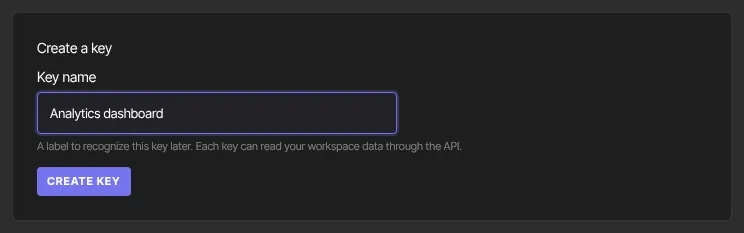
/settings/api). On the Settings page it's the API keys card. - Under Create a key, type a Key name of up to 60 characters. Name it after the tool it's for, such as "Zapier sync" or "Sales dashboard", so you know later what you'd break by revoking it.
- Click Create key.
- A yellow box appears: "Key created. Copy it now — it won’t be shown again." Click Copy next to the key (it changes to Copied ✓) and paste the key into your tool.
- Click Done to close the box.
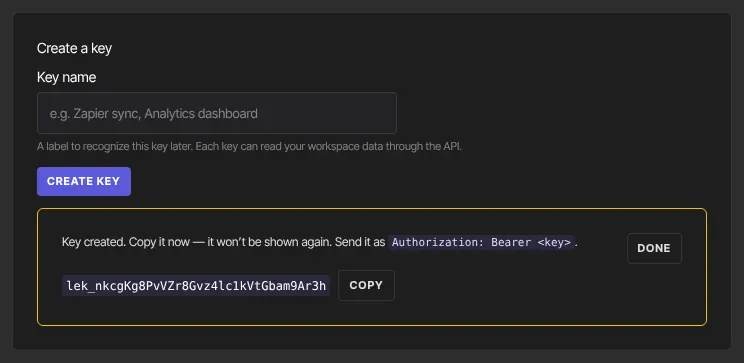
Copy the key before you click Done. We keep only a scrambled fingerprint of it, so nobody, including support, can show it to you again. If you lose it, revoke it and create a new one. Every key starts with lek_, and you can have up to 20 active keys at once.
Hand it over safely
- A key is a password. Paste it straight into the tool's settings rather than into a note or a chat.
- If you must send it to someone, send it the way you'd send a password, then delete the message.
- Give every tool its own key. Then you can cut off one tool without breaking the others, and each key gets its own request allowance.
What a key can and can't do
- It can read your contacts, products, offers, enrollments and engagement reports. It can't add, change or delete anything.
- It only ever reaches your workspace.
- Each key can make a limited number of requests a minute, so a badly behaved tool slows itself down rather than your school.
Your list of keys
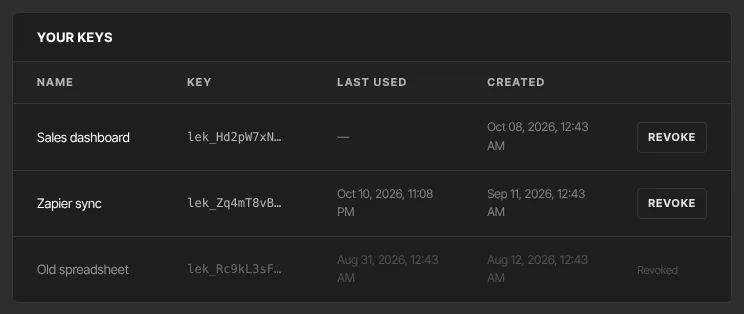
Your keys lists every key you've made, newest first:
- Name: the name you typed.
- Key: the first 12 characters and "…", enough to tell keys apart but never enough to use one.
- Last used: when a tool last made a successful request with it. A key that hasn't been used in months is usually one nothing depends on. Refused requests don't count.
- Created: when you made it.
Revoke a key
- In Your keys, click Revoke on the key's row. There's no confirmation step.
- The row greys out and shows Revoked. It stays in the list so you keep a record of what you issued.
The key stops working at once: the tool's next request is refused. Revoke when a contractor or teammate leaves, when you stop using a tool, or whenever you're not sure where a key ended up. A revoked key can't be turned back on; create a new one instead.
If your plan changes
If the workspace moves to a plan without API access, every key stops working at once, and tools get an error saying API access needs a paid plan. Keys also stop working while a workspace is suspended or closed; tools are told the workspace isn't in service. Your keys aren't deleted: on Settings → API keys, a Your keys panel above Upgrade to unlock the API still lists them with "These keys stopped working when your plan changed. Revoke any you no longer need; upgrading turns the rest back on." You can revoke them on any plan.
The API reference, for whoever connects the tool
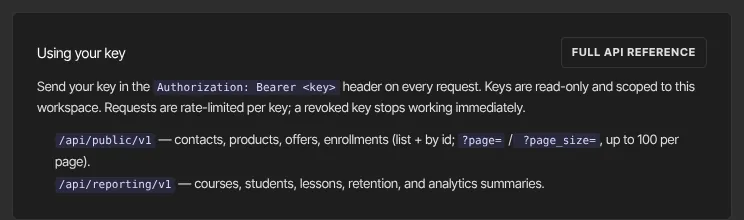
Most tools just ask for the key. If someone is writing code, send them to the reference: click Full API reference under Using your key, or open Settings → API keys → API reference.
- It's built from the same description the API itself is checked against, so it lists every request a key can make, with fields, filters, page sizes, errors and a ready-to-run example.
- Choose cURL, JavaScript, Python, PHP, Ruby or Go under Language and every example switches to it; curl is the default.
- Download PDF at the top gives you the same content as a file to hand over.
- Admins can read the reference; only the owner can mint keys. The reference holds no secrets, and the person reading it is often the developer doing the work.
- Public developer docs, the button beside Download PDF, opens developers.zinstruct.com. It has the same reference plus every webhook event and the OpenAPI file, and needs no sign-in, so you can send the link to a developer who has no account in your workspace.

What happens next
- The tool can use the key straight away, and Last used updates as it works.
- Nothing is emailed when you create or revoke a key.
- A developer usually starts with the key check in Call the API.
Common errors
- "Give the key a name.": the name was empty. Type a name.
- "Keep the name under 60 characters.": shorten the name.
- "You've reached the limit of 20 active keys. Revoke one to create another.": revoke a key you no longer use, then try again.
- "Could not create the key.": something went wrong on our side. Try again.
- "API access requires a paid plan (Core, Advanced or Professional). Upgrade in Settings → Billing.": the plan changed while the page was open. Upgrade, then create the key.
- "Only the workspace owner can manage API keys.": you're an admin. Ask the owner.
- "Only owners and admins can view API settings.": you're signed in as staff or a viewer.
- Revoke seems to do nothing: reload the page. If the key still isn't marked Revoked, click Revoke again.