Zinstruct has an MCP server, so an AI assistant can read your school's data and answer questions like "which students stalled in module 2?" or "how many people enrolled in my course this month?". MCP (Model Context Protocol) is the standard way assistants connect to outside tools. The assistant only reads: it can't change, send or delete anything in your school. There are two ways to connect: assistants with a connector screen, such as ChatGPT and claude.ai, connect by signing in to Zinstruct; developer tools such as Claude Code and Cursor connect with an API key. Either way you can disconnect it at any time.
Who can do this
- Signing in: the workspace owner or an admin allows the connection.
- API key: the workspace owner creates the key. See API keys.
- Plan: any paid plan: Core, Advanced or Professional. The free trial on its own doesn't include it.
Connect ChatGPT, Claude or another assistant by signing in
- In your assistant, add a custom connector (it may be called a remote MCP server) with the address
https://mcp.zinstruct.com. Leave any authentication setting on OAuth or "sign in"; you don't need a key. - The assistant opens a Zinstruct page. Sign in if you're asked to, with the account that owns or administers the school.
- The page asks Connect … to …? with your school's name and lists what the assistant will be able to read. Check it's the right school: the connection is for the workspace you have open, so to connect a different one, switch to it in Zinstruct first and start again.
- Click Allow read access. You're sent back to the assistant, which can now read your school. Click Deny to send it back without access.
Create a key for the assistant
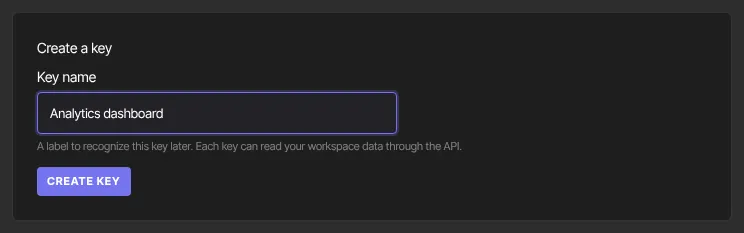
- Go to Settings → API keys.
- Under Create a key, type a name you'll recognise, such as "Claude Code".
- Click Create key and copy the key from the yellow Key created box. It's shown only once.
Add the server with a key
The server address is https://mcp.zinstruct.com. Every request sends your key in the header Authorization: Bearer followed by a space and the key.
- Claude Code: in a terminal, run
claude mcp add --transport http zinstruct https://mcp.zinstruct.com --header "Authorization: Bearer YOUR_KEY", with your key in place of YOUR_KEY. - Cursor: open your MCP settings (the
mcp.jsonfile) and add a server namedzinstructwith"url": "https://mcp.zinstruct.com"and"headers": { "Authorization": "Bearer YOUR_KEY" }. - Another assistant: add a remote (HTTP) MCP server with the same address and header.
- Ask the assistant something about your school. It usually starts by calling get_workspace to check which school it's connected to.
What the assistant can read
- Your school: its name and plan, and a summary of students, active learners, paying customers, courses and completion.
- Contacts: the contact list with filters, and one contact's details.
- Products and offers: your catalog and how each product is priced.
- Enrollments: who has access to which product, and their progress.
- Course engagement: each course's and module's engagement, students' activity and watch history, and the lessons where viewers drop off most.
Lists come back a page at a time, up to 100 items per page; the assistant asks for the next page when it needs more. Revenue figures aren't included.
What happens next
- The assistant reads your data when you ask it something. Each request uses the key, and the key's Last used date on Settings → API keys updates.
- Nothing in your school changes: every tool only reads.
- Assistants you connected by signing in are listed under Connected AI apps on Settings → API keys, with when they connected and were last used. Owners and admins see the list.
- To disconnect a signed-in assistant, click Disconnect next to it. To disconnect a key-based one, revoke its key. Its next request is refused.
- A signed-in connection also stops working if the person who allowed it is removed from the team, paused, or is no longer an owner or admin.
- If the workspace moves to the free trial alone, is suspended or is closed, the key stops working, as every API key does.
Common errors
- "Only an owner or admin of this workspace can connect an AI assistant." on the Zinstruct page: sign in with an owner or admin account, or ask one to connect it.
- "This connection can’t continue": the assistant's request was incomplete or the assistant isn't registered. Start again from the assistant.
- "Missing or malformed Authorization: Bearer token." (401): the header is missing or mistyped. It must be
Authorization: Bearer, a space, then the key. - "Invalid or revoked token." (401): the key was revoked or copied incompletely. Create a new key.
- "API access requires a paid plan (Core, Advanced or Professional). The workspace owner can upgrade in Settings → Billing." (403): the workspace isn't on a paid plan.
- "Too many requests. Slow down." (429): more than 600 requests in a minute. Wait a minute.
- "No contact with that id in this workspace." (and the same for other records): the assistant used an id from another school or one that was deleted. Ask it to look the record up again.
- The assistant can't connect at all: check the address is exactly
https://mcp.zinstruct.comand that your assistant supports remote (HTTP) MCP servers with a header.