A consulting program packages your time: a session plan your clients can read, a place where they book sessions with you, and a program page with your name, meeting link and colours. In Zinstruct this product type is called Consulting (some links still say coaching). This article covers creating a program, filling in its details, and selling it.
Who can do this
- Owners, admins and staff can create a program. Each new program counts toward your plan's product limit; see Plans and billing.
- On the Details tab, staff can change the title, description and artwork, but only owners and admins can save the Consulting details panel. Staff who try see "You don’t have permission for this."
- Only owners and admins can publish or unpublish a program. Staff who click Publish program see "You don’t have permission to do that."
- Viewers can open every tab but can't create or change anything.
Create a program
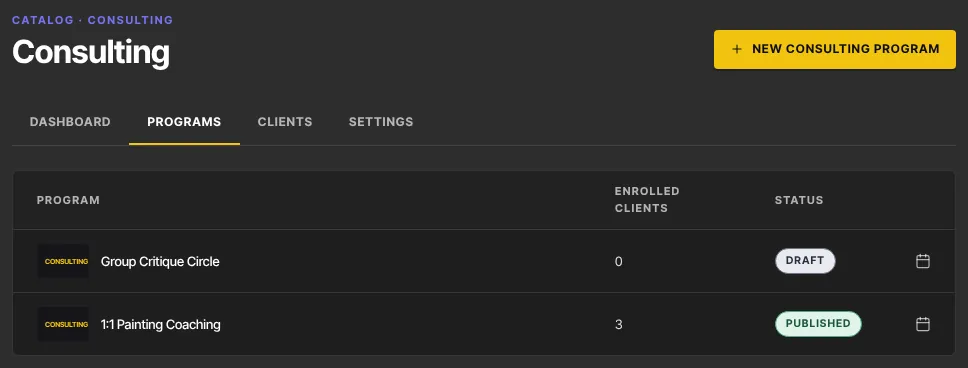
- In the sidebar, open Catalog → Consulting (
/products/coaching). On the Programs tab, click New consulting program. You can also go to Catalog, click New product, pick Consulting and click Get started. - The form is titled Add details. Fill in Title.
- Under Program type, choose 1:1 Consulting or Group Consulting. For a group, add a Group name such as "Spring circle".
- In How many sessions?, type a number. We create that many blank sessions (up to 50) for you to fill in later.
- Optionally fill in Coach name (optional) and Coach email (optional), pick a Session duration (15 to 90 minutes), and set Primary color and Accent color.
- Write a Brief description and, if you like, add a Thumbnail image (optional) (1280×720 works best).
- Click Create Program. The program opens on its Package outline tab, as a draft.
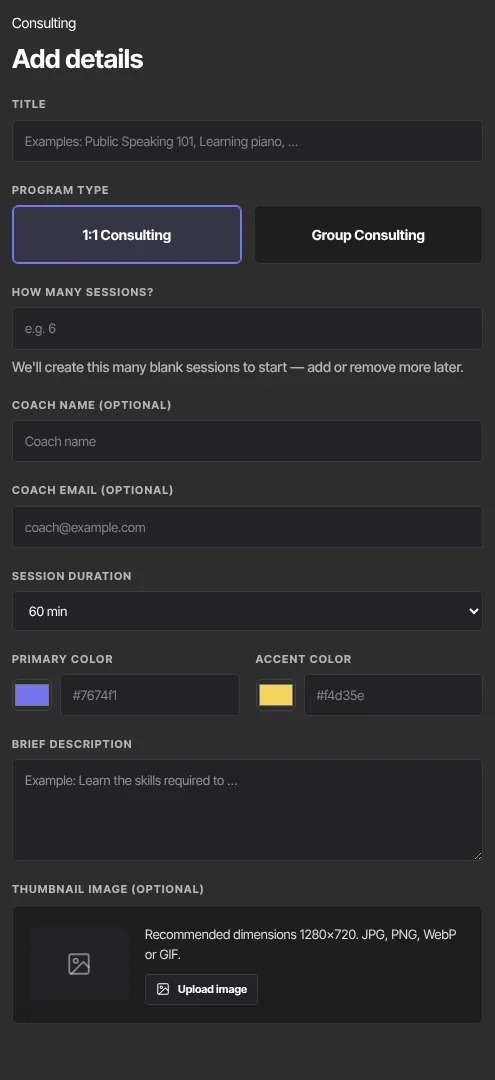
Set colours with the swatch, or type a full hex code such as #7674f1. If a colour box holds anything else, the program shows default values for all its consulting settings (coach, session length, group name) until you fix it on the Details tab.
A few things to know before you sell:
- Group Consulting labels the program as a group: clients see "Group coaching" and the group name. Booking still works one client per time slot, so once anyone books a time it's gone for everyone else.
- How many sessions? only creates blank sessions in your outline. It doesn't limit how many sessions a client can book.
- The type picker lists Intake forms among Consulting features. Programs don't have an intake form.
Fill in the Details tab
- Open the program and click the Details tab.
- In the top card, edit the Coaching title and Description, then click that card's Save details.
- Under Artwork, click Upload image (or Replace image) for the picture shown on the program page and in your catalog.
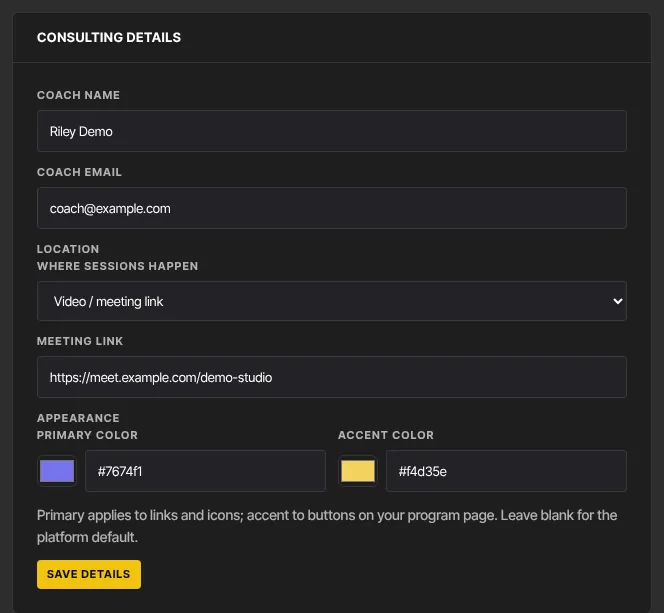
- In the Consulting details panel, fill in Coach name and Coach email.
- Under Location, choose Where sessions happen: Not specified, Video / meeting link (then paste the Meeting link) or In person (then type the Address or place).
- Under Appearance, set Primary color (links and icons) and Accent color (buttons) for your program page. Leave them blank for the default look.
- Click the panel's Save details. You'll see ● Saved.
Session length, timezone and booking rules are on the Settings tab, and weekly hours on Scheduling: see Consulting: booking rules and availability.
Publish and sell the program
- On the Package outline tab, click Publish program. Click Unpublish to take it offline again.
- Sell it with an offer from the program's Offers tab, or give someone access by hand from their contact record. See Offers overview and Grant and revoke access.
- Click Preview to open the program page the way clients see it.
What happens next
- While the program is a draft, clients who have access see "This coaching program isn’t available right now".
- Once it's published, clients find it under Consulting in their member area. The page shows your coach name, the session length, a Join session button for a meeting link (or the address for in-person sessions), and the session plan.
- The program's own Clients tab lists everyone with access.
- Next, write the session plan (Build a consulting program's session outline) and open your hours for booking.
Common errors
- "You've reached your … plan's limit of … products. Upgrade in Settings → Billing to add more.": you're at your plan's product limit. Upgrade, or remove a product you no longer need.
- "Please fix the highlighted fields.": something in the form isn't valid. Check it and try again.
- "Could not create the product. Please try again.": a temporary problem. Try again.
- "Primary color must be a hex value like #7674f1." or "Accent color must be a hex value like #f4d35e.": type a hex code, or clear the box.
- "Invalid email address": check the coach email.
- "Could not save settings.": try again in a moment.
- "You don’t have permission for this.": only owners and admins can save the Consulting details. If you're the owner and see this, check whether your free trial has ended: a read-only workspace can't save changes until you subscribe in Settings → Billing.
- The program shows default values everywhere after you create it: a colour box held something other than a hex code. On Details, re-enter the coach details, fix the colours and click Save details.