Each consulting program decides how clients book. With the built-in scheduler, clients pick an open time from the weekly windows you set. With an external link, they're sent to your own scheduling site, such as Calendly or Acuity. Booking rules live on the program's Settings tab, and your weekly hours on its Scheduling tab.
Who can do this
- Owners and admins set the booking rules on the Settings tab. Staff who click Save settings see "You don’t have permission for this."
- Owners, admins and staff set the weekly availability on the Scheduling tab.
- Viewers can open both tabs, but Save availability shows "You don’t have permission for this."
Set the booking rules
- Open the program and click its Settings tab.
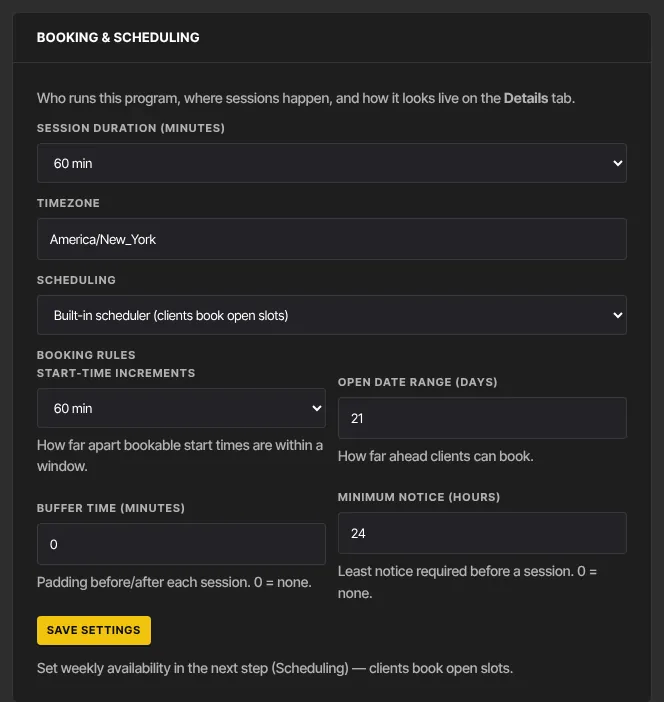
- In Booking & scheduling, choose Session duration (minutes).
- In Timezone, type your time zone name, such as America/Los_Angeles or Europe/London. Your weekly hours are read in this zone. If you leave it blank, they're read as UTC (Coordinated Universal Time), so 09:00 means 09:00 UTC.
- Leave Scheduling on Built-in scheduler (clients book open slots).
- Under Booking rules, set Start-time increments (how far apart bookable start times are), Open date range (days) (how far ahead clients can book), Buffer time (minutes) (padding before and after each session, 0 for none) and Minimum notice (hours) (the least notice you need, 0 for none).
- Click Save settings. You'll see ● Saved.
Open your weekly availability
- Click the program's Scheduling tab. You can also click the calendar icon next to a program on the Programs tab of Consulting.
- In Weekly availability, click Add window. Choose the day, then the start and end time. Add as many windows as you need; one day can have several.
- To remove a window, click its bin icon.
- Click Save availability. You'll see Saved.
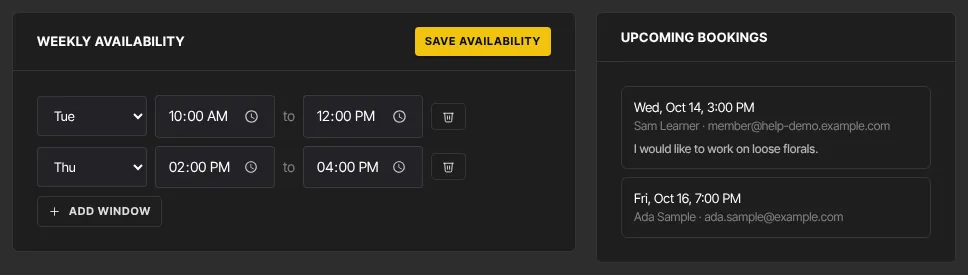
Saving replaces all your windows with what's on screen. A window whose end time isn't after its start time is dropped.
The Upcoming bookings panel lists each booked session with the client's name, email and any note they left. A session stays in this list until it's cancelled, even after its time has passed.
Use an external scheduling link instead
- On the Settings tab, set Scheduling to External link (Calendly, Acuity, etc.).
- Paste the address of your booking page into Scheduling URL.
- Click Save settings.
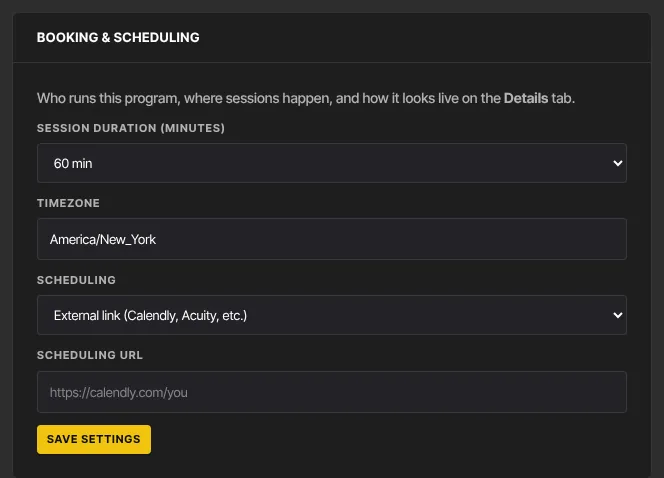
Clients now see a Book a session button that opens your scheduling page, and they can't book inside Zinstruct. The Scheduling tab says "This program uses an external scheduling link" instead of showing the availability editor. Your booking rules are kept, so they come back if you switch to the built-in scheduler again.
Calendars
You can connect a calendar once, on the Consulting Settings tab, and every program uses it. Google Calendar and Microsoft Outlook are two-way: their busy times block slots, and new bookings are added to your calendar. Calendly is busy-import only: its commitments block slots, but bookings aren't sent back. Each program can also give you a read-only calendar feed. See Sync consulting bookings with your calendar.
What happens next
- Clients with access see open times on their program page, grouped by day and shown in their own local time. Times are worked out each time the page loads, from your windows, session length, increments, buffer, notice and date range, leaving out times already booked and busy times on a connected calendar.
- When a client books, the time is taken for everyone. The booking shows on the Scheduling tab and on the Consulting Dashboard and Clients tabs.
- No email is sent to you or the client when a session is booked or cancelled. Check Upcoming bookings, or connect a calendar.
- Clients can cancel their own bookings from their program page. The time becomes bookable again.
- There's no limit on how many sessions one client can book, and group programs also take one client per time slot.
Common errors
- "Timezone must be a valid IANA zone like America/Denver.": type the zone name exactly, in Region/City form, such as America/New_York or Europe/Paris.
- "Start increment must be 5, 10, 15, 20, 30, or 60 minutes.": pick a value from the list.
- "Invalid URL": the scheduling URL must be a full address starting with https://.
- "Could not save settings." or "Could not save availability.": try again. If availability didn't save, click Save availability again before you leave the page; until it saves, clients may see no open times.
- "You don’t have permission for this.": your role can't change this. If you're the owner, check whether your free trial has ended; a read-only workspace can't save changes.
- Clients see "No open times right now — check back soon.": there are no windows yet, the open date range or minimum notice leaves no room, every time is booked, or a connected calendar is busy at those times.
- Times show at the wrong hour for clients: set Timezone on the Settings tab.
Related articles
- Sync consulting bookings with your calendar
- Create a consulting program
- Consulting dashboard, clients and private notes
- Book and manage your consulting sessions (what clients see)