The Package outline is your consulting program's session plan: an ordered list of sessions, each with a description, an agenda and resources such as notes, links, images and documents. Clients read it on their program page. The outline describes what each session covers; booking, which decides when sessions happen, is set up separately.
Who can do this
- Owners, admins and staff can add, edit, rename, reorder and duplicate sessions.
- Only owners and admins can delete a session. Staff who pick Delete see "You don’t have permission to do that." and the session stays.
- Viewers can open the outline and the session editor. Add session, the arrows and the menu actions show "You don’t have permission to do that.", and Save session shows "You don’t have permission for this."
Add a session and write its plan
- Open the program from Consulting → Programs. It opens on the Package outline tab, where the Sessions panel lists your sessions.
- Click Add session. A new session, named by its place in the list (for example "Session 4"), is added at the end, and its editor opens.
- Click the title at the top of the editor to rename the session, and describe it under Session description.
- Under Agenda, type the first item. Click Add item for more; the bin icon removes one.
- Under Resources, pick a type for each row, give it a Label, and fill in what that type needs (see the list below). Click Add resource for another row.
- Click Save session. You'll see Saved.
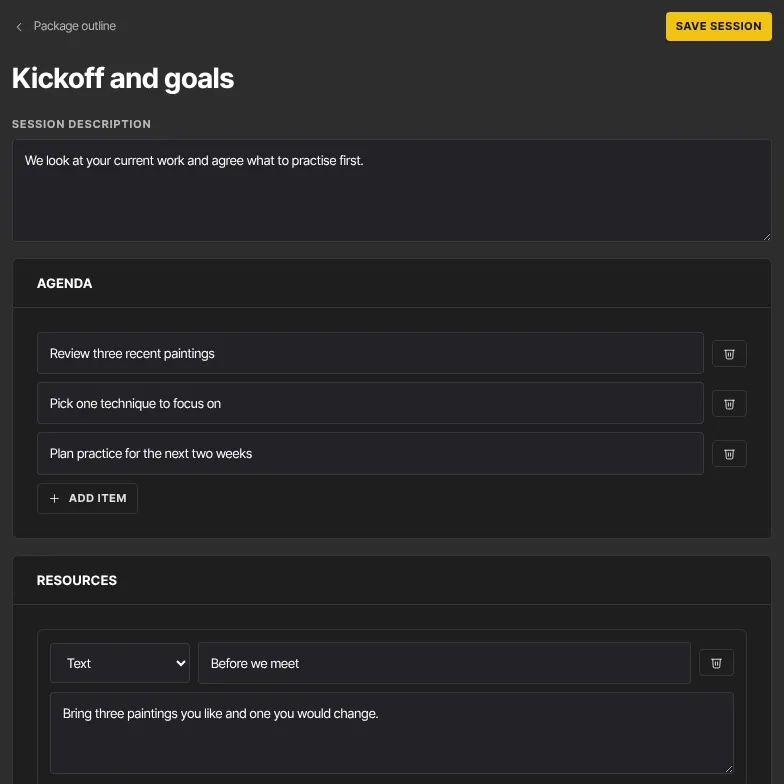
The resource types are:
- Text: a note your client reads on the program page.
- Video: a YouTube, Vimeo or .mp4 address. It plays on the program page.
- Link: any web address.
- Image: click Upload image and pick a PNG, JPEG or WebP file.
- Document: click Upload document and pick a PDF, Word or Excel file.
Uploaded images and documents are for clients with access only, and they reach clients only once you click Save session. Empty agenda items and half-filled resources are dropped when you save. Click Package outline at the top left to go back.
Rename, reorder, duplicate or delete sessions
On the Package outline tab:
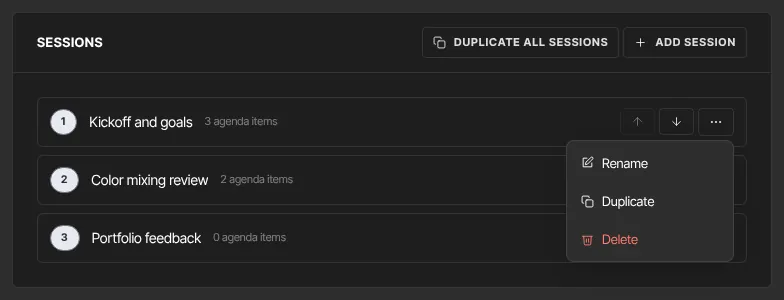
- Use the up and down arrows (Move up, Move down) to change a session's position. Clients see the new order.
- Open a session's … menu and pick Rename to edit the title in place, then click Save (or Cancel).
- Pick Duplicate in the menu to add a copy, called "… (copy)", at the end of the outline.
- Pick Delete to remove the session. It's removed straight away, with no confirmation and no undo.
- Click Duplicate all sessions at the top of the panel to add a copy of the whole outline after the last session, in the same order. It's a quick way to run the same package again.
Where clients open files
Clients see uploaded images on the program page, and a document downloads when they click its label. This works in the member area at app.zinstruct.com and on your school's own web address (your yourname.zinstruct.com address or your own domain), as long as the client is signed in with the email that has access to the program. A signed-out client who clicks a document is sent to the sign-in page first.
What happens next
- Clients with access see the sessions in order on their program page, numbered, each with its description, agenda and resources. Until the outline has a session, they see "Your coach is still setting up the session plan."
- Saved changes show to clients straight away. Sessions have no publish step of their own, but the program itself must be published.
- The outline doesn't limit bookings: a client can book more sessions than the outline lists.
- Deleting a session doesn't change sessions clients have already booked.
Common errors
- "Enter a title (up to 200 characters).": a renamed session needs a title of 1 to 200 characters.
- "Too small: expected string to have >=1 characters": the session title in the editor is empty. Type a title and click Save session again.
- "Invalid URL": a Video or Link resource needs a full web address starting with https://.
- "Could not save the session." or "Could not rename the session.": try again in a moment.
- "Upload failed — please try again." or "Something went wrong.": the file didn't upload. Try again.
- "Not allowed": your role can't upload files. Viewers can't change sessions.
- "You don’t have permission to do that.": staff can't delete sessions, and viewers can't change the outline.
- "You don’t have permission for this.": viewers can't save sessions. If you're the owner and see this, check whether your free trial has ended; a read-only workspace can't save changes.
- A client can't see a file you uploaded: check you clicked Save session after uploading it.
- "Not found or not enrolled" when a client opens a file: they're signed in with an email that doesn't have access to the program, or you've since removed that resource. Ask them to sign in with the email they have access under and open the program page again.