The Consulting area rolls up all your programs in one place. Dashboard shows your numbers and upcoming sessions, Programs lists your programs, and Clients lists everyone who has access to a program or has booked a session, with their sessions and your team's notes about them. Settings holds calendar connections; see Sync consulting bookings with your calendar.
Who can do this
- Every team member (owner, admin, staff and viewer) can open these tabs, read client details and notes, and export the client list.
- Owners, admins and staff can add, edit and delete notes. Viewers who try see "You don’t have permission for this."
Check the dashboard
- In the sidebar, open Catalog → Consulting (
/products/coaching). It opens on Dashboard. - The top row shows Programs, Enrolled clients and Upcoming sessions.
- The Sessions panel lists booked sessions across all your programs, soonest first, with each client's name and email and the program.
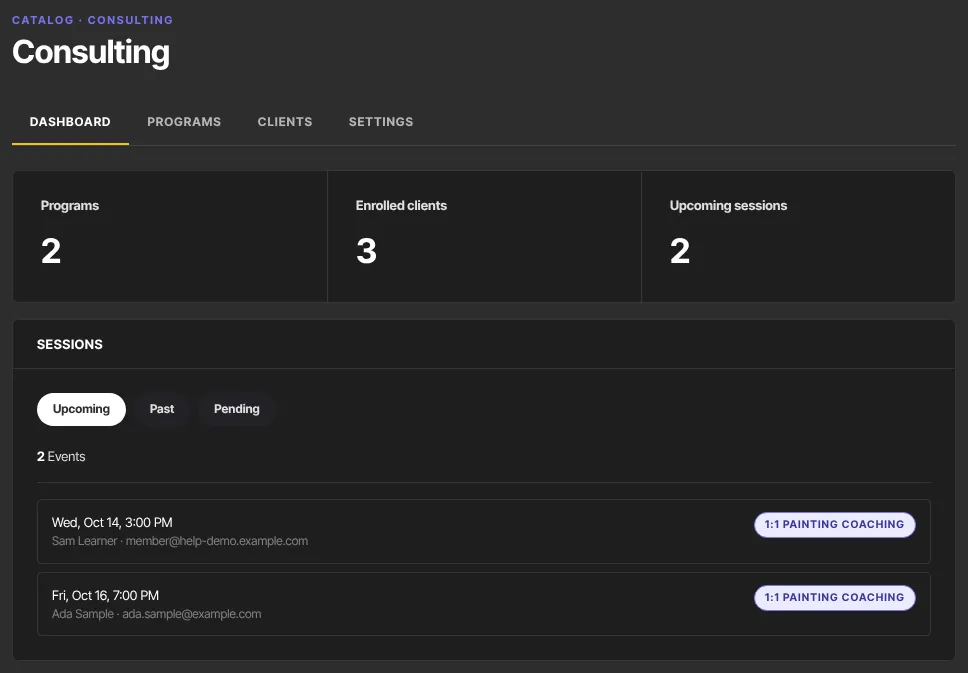
Upcoming shows every booked session that hasn't been cancelled, including sessions whose time has passed. The Past and Pending buttons always show an empty list; to see a client's past sessions, use the Clients tab.
Find a client
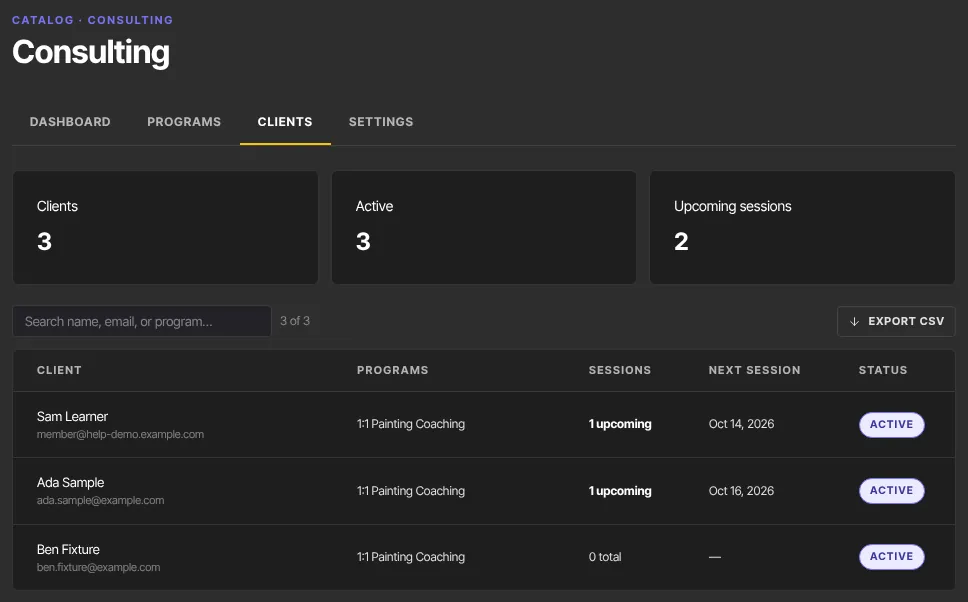
- Click the Clients tab. The cards at the top show Clients, Active and Upcoming sessions.
- Type in Search name, email, or program… to filter the table.
- Each row shows the client's Programs, Sessions (upcoming, or the total), Next session and Status: active (has access), completed, revoked (access removed) or guest (has bookings but no access record).
- Click a row to open the client's details: upcoming and total sessions, Last session, Client since, and every booking with its status and the note the client left when booking.
Keep notes about a client
- Open the client's details from the Clients tab.
- Under Private notes, type in Add a private note about this client… and click Add note. Notes are listed newest first, with the date and time.
- To change a note, click Edit, change the text, and click Save (or Cancel). An edited note shows "· edited".
- To remove a note, click Delete, then click Delete again to confirm.
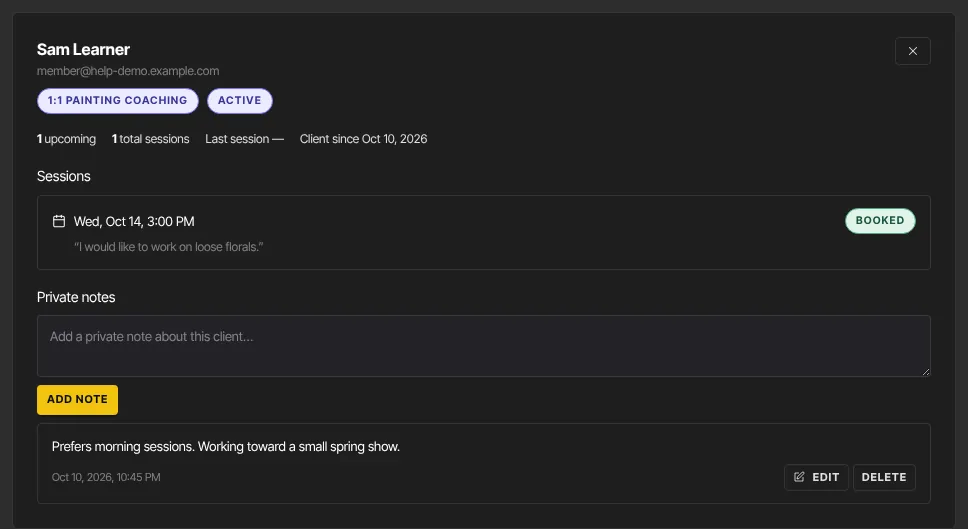
The panel says "Only you (the coach) can see these." In fact, everyone on your team can read these notes, viewers included. Clients never see them. Keep that in mind before writing anything sensitive.
Export your client list
- On the Clients tab, search first if you only want some clients.
- Click Export CSV. Your browser downloads coaching-clients.csv with the clients shown: name, email, programs, total sessions, upcoming sessions, next session and last session.
What happens next
- People appear on the Clients tab as soon as they get access to a program or book a session. To give someone access by hand, see Grant and revoke access.
- Notes belong to the person, not to one program, so they show for that client in every program.
- On the Programs tab, each program shows its enrolled clients and status. Click a program to open its outline, or the calendar icon to open its Scheduling tab.
- No email is sent to you when a client books or cancels, so check the dashboard regularly or connect a calendar.
Common errors
- "Note cannot be empty.": type something before clicking Add note or Save.
- "Note is too long (max 5000 characters).": shorten the note, or split it into two.
- "Unknown client.": that person's contact record no longer exists. Reload the page.
- "Could not add the note.", "Could not save the note." or "Could not delete the note.": try again in a moment.
- "You don’t have permission for this.": viewers can't change notes. If you're the owner, check whether your free trial has ended.
- Export CSV is greyed out: no clients match your search.
- "No consulting clients yet": nobody has access to a program or a booking yet.