There are two ways to keep consulting bookings and your own calendar in step. A calendar connection checks your calendar for busy times before clients are offered slots, and can add new bookings to it; one connection covers every program. A calendar feed is a private web address, one per program, that any calendar app can subscribe to, showing that program's booked sessions.
Who can do this
- Owners and admins can connect and disconnect calendars, and turn calendar feeds on or off.
- Staff and viewers see the same buttons. Connect sends them to the sign-in page and nothing is connected. Disconnect, Enable calendar feed, Regenerate link and Turn off show "You don’t have permission to do that."
- Calendar connections work only when they're available for your account. A calendar marked Not configured has a greyed-out Connect button; use the calendar feed instead.
Connect a calendar
- Open Consulting and click the Settings tab.
- In Connect a calendar, find Google Calendar, Microsoft Outlook or Calendly. One you can connect shows Available.
- Click Connect, sign in to that calendar account and approve access.
- You come back to the Settings tab with the message "Calendar connected — busy times are excluded from booking across all your programs (and Google bookings land on your calendar)." The calendar now shows Connected and the account's email address.
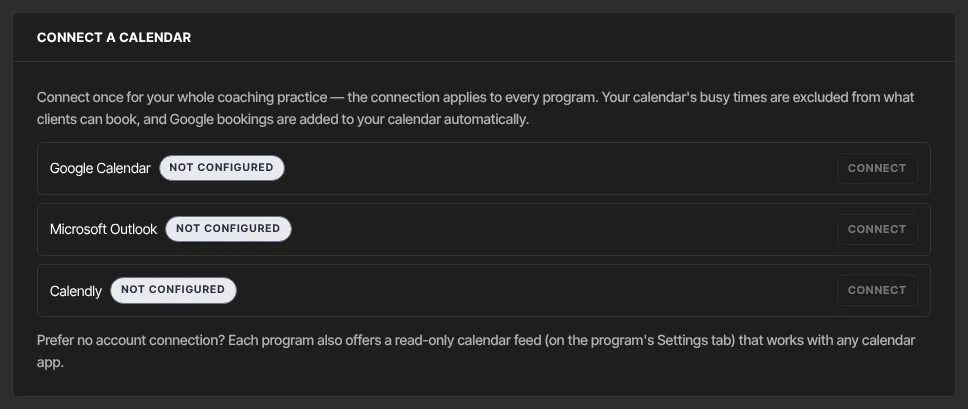
What each one does:
- Google Calendar (two-way): busy times block slots in every program, and each new booking is added to your calendar as a "session" event for that program, with the meeting link or address. If the client cancels, the event is removed.
- Microsoft Outlook (two-way): works the same as Google, even though the message on screen mentions only Google.
- Calendly (busy-import): your Calendly commitments block slots here. Bookings made here aren't added to Calendly.
Busy times are checked each time a client opens their booking page, so a block you add to your calendar affects the next client who looks.
Disconnect a calendar
- On the same Settings tab, click Disconnect next to the connected calendar. It happens straight away, with no confirmation.
- The calendar shows Available again. Busy-time checks and new calendar events stop for every program.
Sessions already booked stay booked, and events already added to your calendar stay there. Disconnecting here doesn't remove Zinstruct's access from your Google, Microsoft or Calendly account; you can remove it in that account's settings.
Subscribe to a program's calendar feed
- Open the program and click its Settings tab.
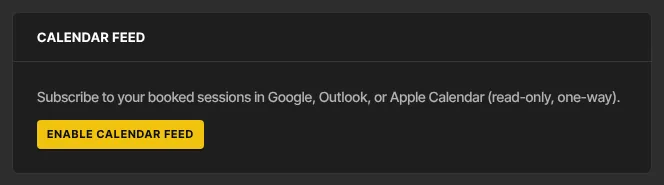
- In Calendar feed, click Enable calendar feed.
- Click Copy next to Subscription URL.
- In your calendar app, use its option to subscribe to (or add) a calendar from a URL, and paste the address.
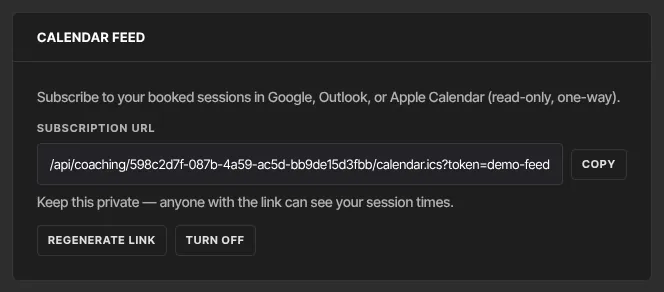
Your app then shows the program's booked sessions as "session" events with the meeting link or address. Client names aren't included. The feed is read-only and one-way, and calendar apps refresh subscriptions on their own schedule, so a new booking can take a while to appear.
Keep the address private: anyone with it can see your session times. If it's been shared, click Regenerate link: the old address stops working, and you subscribe again with the new one. To stop the feed, click Turn off; subscribed calendars stop updating.
What happens next
- With a calendar connected, clients are only offered times that are also free on your calendar, in every program.
- New bookings appear on a connected Google or Outlook calendar right away. Feed subscribers see them when their app next refreshes.
- Clients' existing bookings don't change when you connect or disconnect a calendar.
- No email is sent to you when a session is booked, so a connected calendar or a feed is the easiest way to keep track.
Common errors
- "Connection cancelled on the consent screen.": access wasn't approved. Click Connect again and approve.
- "The connect attempt expired — try again.": the sign-in took too long or was started in another tab. Click Connect again.
- "The provider did not accept the connection — try again.": the calendar service refused the sign-in. Try again.
- "Connected, but saving failed — try again.": click Connect again.
- "Calendar connections aren’t available yet — secure credential storage isn’t configured on this platform.": calendar connections can't be used right now. Use the calendar feed instead.
- Clicking Connect takes you to the sign-in page: you're signed in as staff or a viewer. Ask an owner or admin to connect.
- "You don’t have permission to do that.": only owners and admins can disconnect calendars or change a calendar feed.
- Your calendar app can't find the feed any more: the link was regenerated or turned off. Copy the current Subscription URL.