Selling files takes three things: a published download, an offer that sets its price, and a way for buyers to reach the checkout. Once someone buys, the files are theirs to download from their member area, as often as they like, for as long as they have access.
Who can do this
- Owners and admins can publish a download and create, publish and share its offers.
- Staff can prepare the download and its files, but publishing and offers answer "You don’t have permission to do that." or "You don’t have permission to manage offers."
- To charge money, connect Stripe first: see Connect Stripe to take payments. A free offer works without it.
Before you start
- Add the download and upload its files: see Add a download.
- Check the files, their order and the description: see Manage a download.
Publish the download
- Open the download from Catalog → Files.
- Click Publish download at the top of its Files tab.
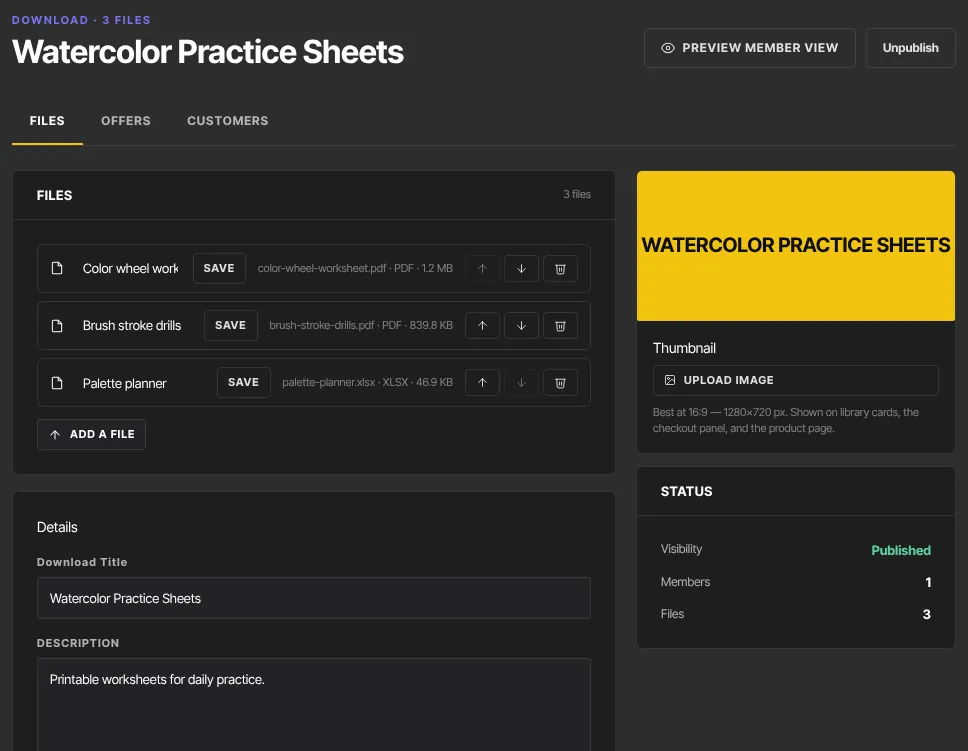
Create an offer for it
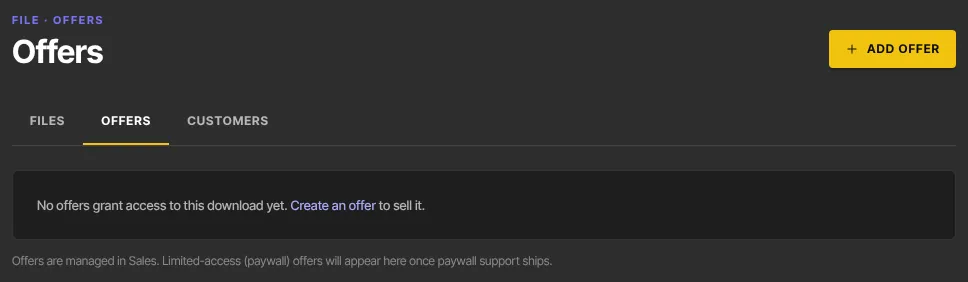
- Open the download's Offers tab. Until it has an offer, it reads "No offers grant access to this download yet."
- Click Add offer (or Create an offer). The offer wizard opens with the download already chosen.
- Name the offer, then pick a Pricing plan: a one-time payment suits most downloads; Free works as a lead magnet.
- Finish the wizard and click Publish offer. The full walk-through is in Create and publish an offer.
Share it
- Back on the download's Offers tab, each published offer has Copy link. Click it to copy the offer's checkout link (the button says Copied!).
- Paste the link wherever your buyers are: an email, a social post, or a button on your site.
- Manage opens the offer to change its price, checkout or availability later.
What buyers get
- After paying, the buyer gets a receipt, and the download appears in their library (Download files).
- Its page shows your picture, description and files in your order, each with a Download button.
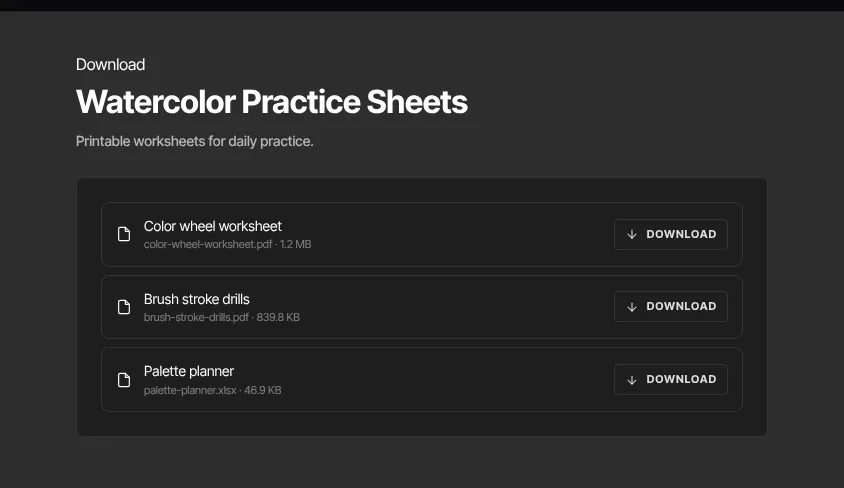
- Each download uses a secure link made on the spot for that buyer, which expires after about 10 minutes. They can come back and download again whenever they like while they have access.
What happens next
- Each buyer is listed on the download's Customers tab.
- If you unpublish the download, buyers see "This download isn’t available right now" until you publish it again.
- There's no record of who downloaded which file.
Common errors
- "You don’t have permission to do that." or "You don’t have permission to manage offers.": only owners and admins can publish a download or manage its offers.
- No Copy link button on an offer: the offer is still a draft. Publish it first.
- A buyer can't see the download: check it's published and that their purchase went through; you can also give access by hand (see Give or remove product access by hand).
Related articles
- Add a download
- Manage a download
- Create and publish an offer
- Manage your offers
- Read newsletters and download files (what members see)