A download is a product that holds files (PDFs, worksheets, templates, audio, or any other file) for your members to download. Adding one takes a few minutes: name it, describe it, and upload the first file, then add the others on its Files tab. Parts of the app call it a File product; it's the same thing.
Who can do this
- Owners, admins and staff can add a download and upload its files. Each new download counts toward your plan's product limit.
- Viewers can't upload. Add a file shows "Could not start the upload."
- Publishing the download is for owners and admins. See Sell files as a download product.
Add a download
- In the sidebar, open Catalog → Files and click New file. Or go to Catalog, click New product, pick File and click Get started.
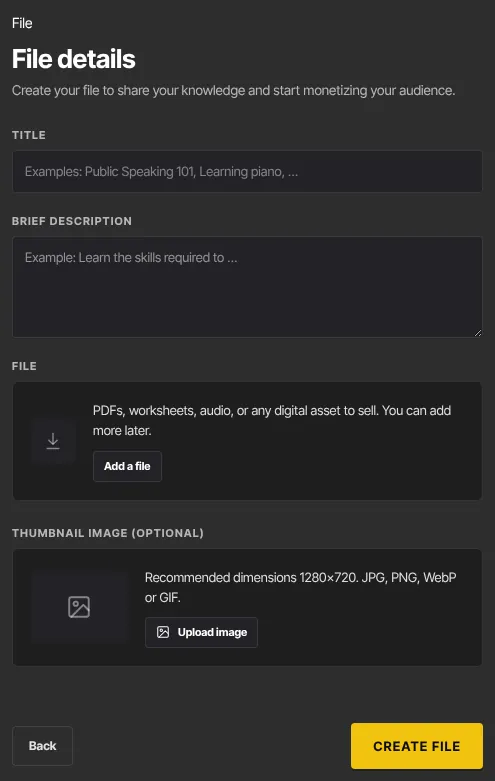
- On File details, fill in Title and Brief description. Members see both on the download's page.
- Under File, click Add a file and pick your first file. It uploads straight away. Replace file swaps it and Remove clears it. You can also skip this and add every file later.
- Optionally add a Thumbnail image (optional).
- Click Create file. The download opens on its Files tab, as a draft.
Add the rest of your files
- On the Files tab, click Add a file and pick a file.
- The button shows Uploading… until the upload finishes. The file then appears in the list with its file name, type and size.
- Repeat for each file. They're listed in the order you add them; you can rename and reorder them afterwards.
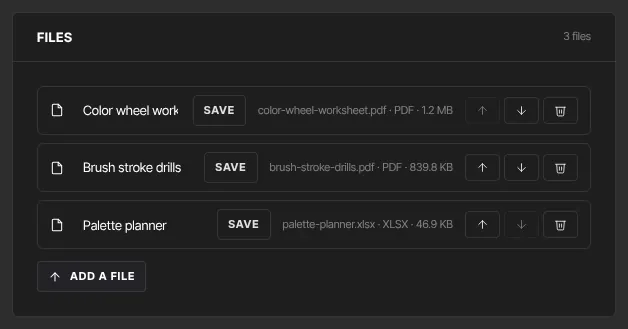
Check that each file is in the list. If one isn't after its upload finishes, it wasn't added: upload it again.
The product type picker lists version updates and license keys among File features. Downloads have neither: to update a file, upload the new version and remove the old one (see Manage a download).
What happens next
- The download stays a draft, so members can't see it yet.
- To change file names, order or the description, see Manage a download.
- To make it available, publish it and create an offer: see Sell files as a download product.
Common errors
- "You've reached your … plan's limit of … products. Upgrade in Settings → Billing to add more.": you're at your plan's product limit.
- "Could not start the upload.", "Upload failed." or "Could not finalize the upload.": the file didn't upload. Try again on a steady connection. Viewers always see the first message, because they can't upload.
- A file isn't in the list after uploading: the upload didn't complete. Add it again.