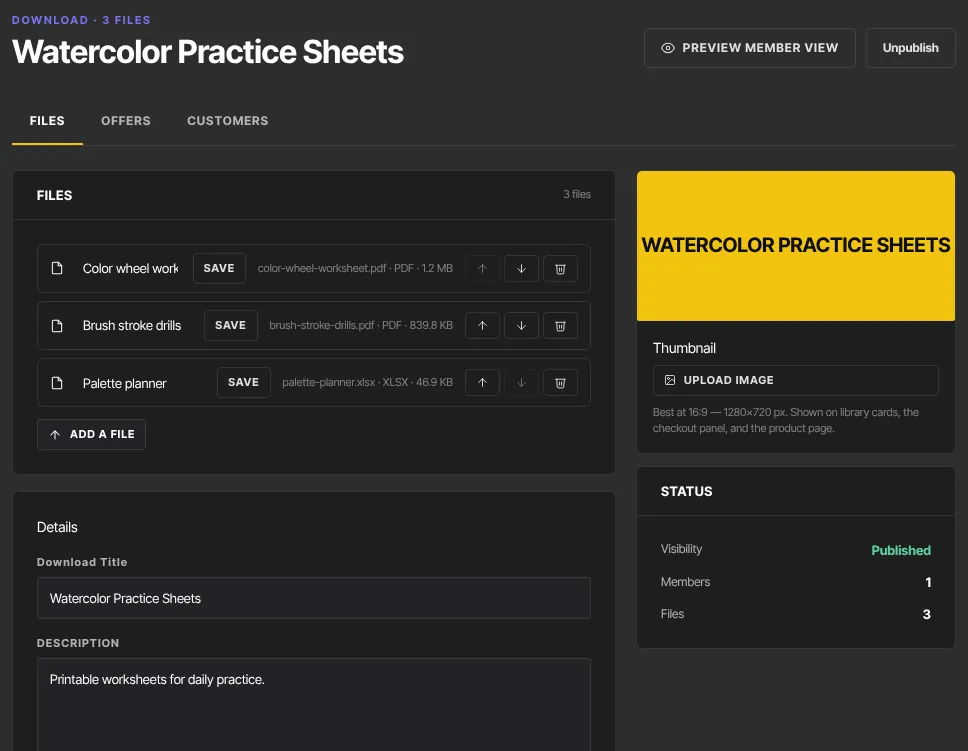
Everything about an existing download lives on its Files tab: the files members get and the order they see them in, the title and description on the download's page, and its thumbnail. Changes reach members straight away, so you can tidy up a download while people are using it.
Who can do this
- Owners, admins and staff can rename, reorder, add and remove files, and edit the details and thumbnail.
- Only owners and admins can publish or unpublish. Staff who click Publish download or Unpublish see "You don’t have permission to do that."
- Viewers can look only. Renaming, moving or removing a file shows "You don’t have permission to do that."
Open a download
- In the sidebar, open Catalog → Files.
- Click the download. It opens on its Files tab, next to Offers and Customers.
Rename and reorder files
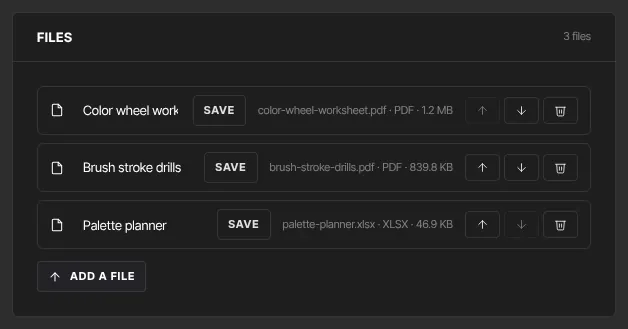
- To change the name members see, edit the title in the file's row and click Save next to it. Titles can be up to 200 characters; an empty title isn't saved.
- Use the up and down arrows (Move up, Move down) to set the order members see.
Replace or remove a file
A file can't be swapped in place. To put out a new version:
- Click Add a file and upload the new version. Wait until it's in the list.
- Move it to where the old one was, and give it the same title if you like.
- Click the old file's bin icon to remove it.
Removing a file takes it away from every member straight away, with no confirmation and no undo. The file is also deleted from your storage, unless it's used somewhere else. Adding the new version first means members never find the download without it.
Edit the title, description and thumbnail
- In the Details card under the files, edit the Download title and Description, then click Save details.
- In the Thumbnail card on the right, click Upload image or Replace image. The picture shows on library cards, the checkout panel and the product page.
Preview, unpublish and see who has access
- Click Preview member view to see the download's page as members do.
- Click Unpublish at the top of the page to take the download offline. Members then see "This download isn’t available right now". Click Publish download to bring it back.
- Open the Customers tab to see who has access.
What happens next
- Renames, new order, new files and removals show to members the next time they open the download.
- There's no record of who downloaded which file. The Customers tab shows who has access, not who downloaded.
- Taking access away from one person is done on their contact record: see Give or remove product access by hand.
Common errors
- A file title goes back to its old name: the title was empty or longer than 200 characters.
- "You don’t have permission to do that.": viewers can't change files, and only owners and admins can publish or unpublish.
- A member can't see a file: check the download is published, the member has access, and the file is listed on the Files tab.