A podcast product is a show made of audio episodes. Members listen on the podcast's page in their member area or in any podcast app, and a public show can also be listed in directories like Apple Podcasts and Spotify. This article covers creating the show and managing its episodes; the show's settings, artwork and feeds are in Podcast settings, public feed and private feeds.
Who can do this
- Owners, admins and staff can create a podcast, add episodes, upload audio and edit episode details. Each new podcast counts toward your plan's product limit.
- Only owners and admins can Publish, Unpublish or delete an episode, and publish the podcast itself. Staff who try see "You don’t have permission to do that."
- Viewers can look only. New episode shows "You don’t have permission to do that.", Upload audio shows "Could not start the upload." and Save episode shows "You don’t have permission for this."
Create the podcast
- In the sidebar, open Catalog → Podcasts and click New podcast. Or go to Catalog, click New product, pick Podcast and click Get started.
- On Podcast details, fill in Title and Brief description. Podcast apps show the description as your show's description.
- Optionally, under Podcast artwork, click Upload artwork and pick your cover art: a square JPG or PNG between 1400×1400 and 3000×3000 pixels. You can also add it later.
- Click Create podcast. The podcast opens on its Episodes tab, as a draft.
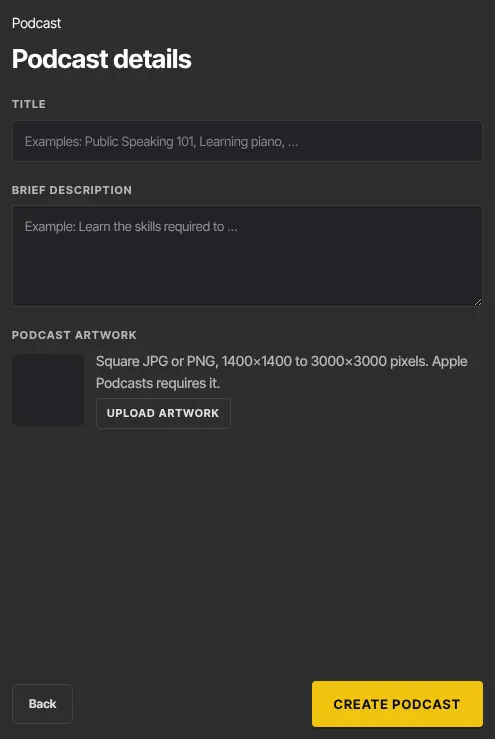
Choose the title and description carefully: a podcast has no tab where you can change them later. The artwork is different: owners and admins can add, replace or remove it at any time under Podcast artwork in the Podcast settings panel. If you picked artwork here, check it shows in that panel once the podcast opens; if it doesn't, upload it there. Podcasts have no separate thumbnail. See Podcast settings, public feed and private feeds.
Add an episode
- Click New episode. An episode named "Episode 1" (and so on) is created as a draft, and its editor opens.
- In the Audio panel, click Upload audio and pick an MP3 or M4A file. When it's done, you'll see Audio uploaded and the file's name and size. To swap the file, click Replace audio; the old file is deleted.
- Click the title at the top of the editor to rename the episode. Fill in Episode #, Season and Show notes (summary, links, timestamps).
- Click Save episode. You'll see Saved.
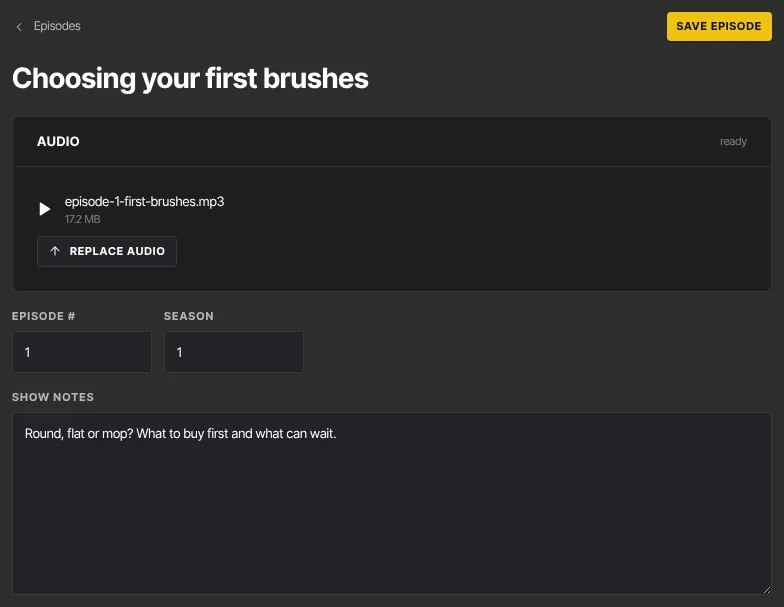
Before you leave, check the Audio panel shows your file name. If it still says "No audio yet — upload an MP3/M4A.", upload the file again. Click Episodes at the top left to go back to the list.
Publish, unpublish or delete episodes
Each episode is published on its own, so you can keep upcoming episodes as drafts.
- In the Episodes list, each row shows Live or Draft, and "audio ✓" or "no audio".
- Click Publish to release a draft episode, or Unpublish to take a live episode back to draft.
- Click the bin icon to delete an episode and its audio file. It's deleted straight away, with no confirmation and no undo.
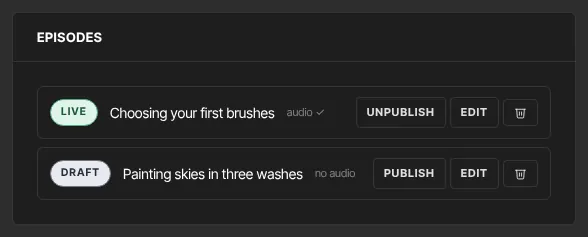
Publish the podcast itself with Publish podcast at the top of the page. Members see episodes only when both the podcast and the episode are published.
What happens next
- Members with access open the podcast from their library (Listen) and see its published episodes, newest first, each with its season and episode number, show notes and a player. An episode published without audio shows a note instead of a player.
- Published episodes with audio also appear in the podcast's feed for podcast apps, newest first. Episodes without audio are left out of the feed.
- If you unpublish an episode and publish it again, it gets a new publish date and moves to the top of the list.
- Unpublishing or deleting an episode removes it from the member page and from feeds.
- Preview shows the member page. For a private podcast, the episodes are listed there but don't play for your team; members with access can play them.
- Podcasts don't have their own Offers tab. Sell one with an offer from Revenue → Offers (
/sales/offers); see Offers overview.
Common errors
- "You've reached your … plan's limit of … products. Upgrade in Settings → Billing to add more.": you're at your plan's product limit.
- "Use a JPG or PNG image for podcast artwork.", or a message that the artwork must be square or is too small or too large: the image you picked for Podcast artwork can't be used. Pick a square JPG or PNG between 1400×1400 and 3000×3000 pixels.
- "Could not start the upload.", "Upload failed." or "Could not finalize the upload.": the audio didn't upload. Try again on a steady connection. Viewers always see the first message, because they can't upload.
- "Too small: expected string to have >=1 characters": the episode title is empty. Type a title and save again.
- "Could not save the episode.": try again in a moment.
- "You don’t have permission for this.": viewers can't save episodes. If you're the owner, check whether your free trial has ended.
- "You don’t have permission to do that.": only owners and admins can publish, unpublish or delete episodes.
Related articles
- Podcast settings, public feed and private feeds
- Offers overview
- Products overview
- Listen to podcasts and use your private feed (what members see)