Your podcast reaches listening apps through an RSS feed: the web address podcast apps read to get your episodes. The Availability setting decides which kind of feed you have. A public show has one open feed that you can submit to directories like Apple Podcasts and Spotify. A private show gives each member with access their own personal feed. New podcasts start private.
Who can do this
- Owners and admins can change Podcast settings, including the Podcast artwork. Staff who click Save settings, or upload artwork there, see "You don’t have permission for this."
- Every team member can open the Distribution tab and copy the feed address.
Add your podcast artwork
Podcast apps and directories show your artwork as the show's cover, and Apple Podcasts requires it, so add it before you submit your feed.
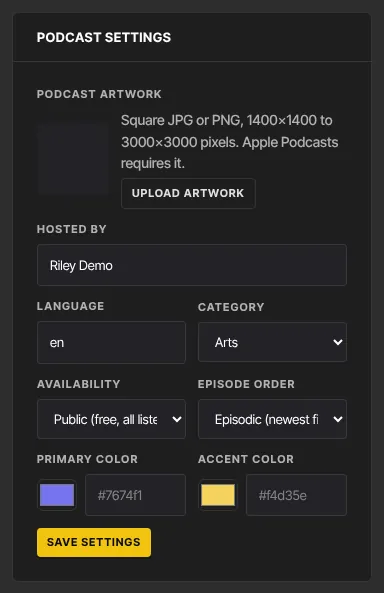
- Open the podcast. On the Episodes tab, Podcast artwork is at the top of the Podcast settings panel.
- Click Upload artwork and pick a square JPG or PNG between 1400×1400 and 3000×3000 pixels. The button shows Uploading… until it's done.
- The artwork saves as soon as it's uploaded and appears in the panel. You don't need to click Save settings.
- To change it, click Replace artwork. To take it off, click Remove.
You can also add artwork when you create the podcast; see Create a podcast and publish episodes. An image that isn't a JPG or PNG, isn't square, or is smaller than 1400×1400 or larger than 3000×3000 pixels is refused with a message saying why, and nothing changes.
The artwork goes into your public feed and every member's private feed, so podcast apps and directories show it the next time they read the feed.
Set up the show
- Open the podcast. The Podcast settings panel sits next to the episode list on the Episodes tab.
- Fill in Hosted by. Members see it on the podcast page, and podcast apps show it as the show's author.
- Set Language (a short code such as en or es) and pick a Category from the list.
- Choose Availability: Public (free, all listening apps) or Private (paid subscribers only).
- Episode order offers Episodic (newest first) and Serial (oldest first). Your choice is saved, but the member page and feeds always list the newest episode first.
- Primary color and Accent color are saved with the show; they don't change how the member podcast page looks.
- Click Save settings. You'll see ● Saved. (The artwork saves on its own, so Save settings doesn't change it.)
Submit a public podcast to directories
- Set Availability to Public (free, all listening apps) and click Save settings.
- Add your Podcast artwork (see above). Without it your feed has no cover art, and Apple Podcasts won't accept the show.
- Publish the podcast with Publish podcast, and publish at least one episode that has audio. Until the podcast is published, the Distribution tab says "Publish the product to make the feed live."
- Click the Distribution tab and copy the address in the RSS feed box.
- Click Apple Podcasts Connect or Spotify for Podcasters, sign in there, and paste the address where they ask for your show's RSS feed. It's a one-time step for each directory.
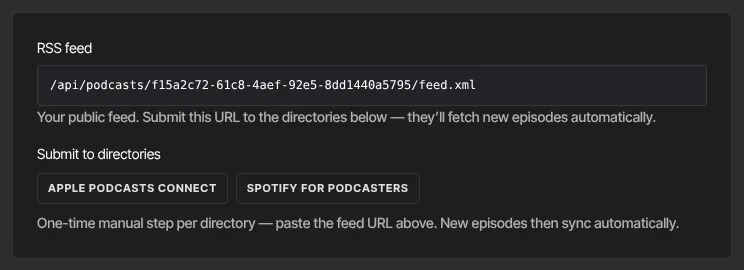
Once a directory lists your show, it picks up new episodes from the feed by itself. Directories review shows against their own requirements, so check what each one asks for before you submit.
Signed-in members can also open a public show's page and listen without buying it.
Private podcasts and personal feeds
- Keep Availability on Private (paid subscribers only).
- Sell access with an offer from Revenue → Offers, or grant it by hand from a contact's record; podcasts don't have their own Offers or Customers tab. See Grant and revoke access.
- The Distribution tab says "This is a private (paid) podcast" and shows no public feed to submit.
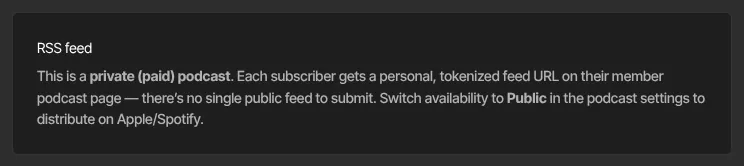
Each member with access sees Your private feed on their podcast page: a personal address that works in any podcast app. It keeps working while their access is active and stops as soon as their access is removed. Directories can't use personal feeds, so to list the show on Apple Podcasts or Spotify, switch it to public.
What happens next
- Feeds list published episodes that have audio, newest first. Podcast apps and directories check for new episodes on their own schedule.
- If you switch a private show to public, it gets one open feed, and members' personal feed addresses keep working.
- If you switch a public show to private, the open feed stops working for directories and everyone subscribed to it. Members with access copy their personal feed from their podcast page.
- Unpublishing the podcast stops every feed until you publish it again.
- Replacing or removing the artwork changes it in every feed. Podcast apps show the change the next time they read the feed.
Common errors
- "Use a JPG or PNG image for podcast artwork.": pick a JPG or PNG file.
- A message starting "Podcast artwork must be square", "Podcast artwork must be at least" or "Podcast artwork can be at most": the message gives your image's size in pixels. Crop or resize it to a square between 1400×1400 and 3000×3000 pixels, then upload it again.
- "Image must be 10 MB or smaller.": save the artwork as a smaller file (a JPG is usually smaller than a PNG) and upload it again.
- "That image couldn’t be read. Try another JPG or PNG." or "That image isn’t available — upload it again.": upload the artwork again, or try another file.
- "Could not save the artwork.": try again in a moment.
- "Pick a category from the list.": choose one of the listed categories and save again.
- "Primary color must be a hex value like #7674f1." or "Accent color must be a hex value like #f4d35e.": type a hex code, or clear the box.
- "Could not save the podcast.": try again in a moment.
- "You don’t have permission for this.": only owners and admins can change podcast settings or artwork. If you're the owner, check whether your free trial has ended.
- A directory can't read your feed: check the podcast is published, Availability is Public, and at least one published episode has audio.
- A directory says your show has no artwork: add Podcast artwork in Podcast settings. It's in your feed from then on.
- A member's personal feed stopped working: their access was removed, the podcast was unpublished, or the show was switched to public. They can copy the current address from their podcast page.
Related articles
- Create a podcast and publish episodes
- Offers overview
- Grant and revoke access
- Listen to podcasts and use your private feed (what members see)